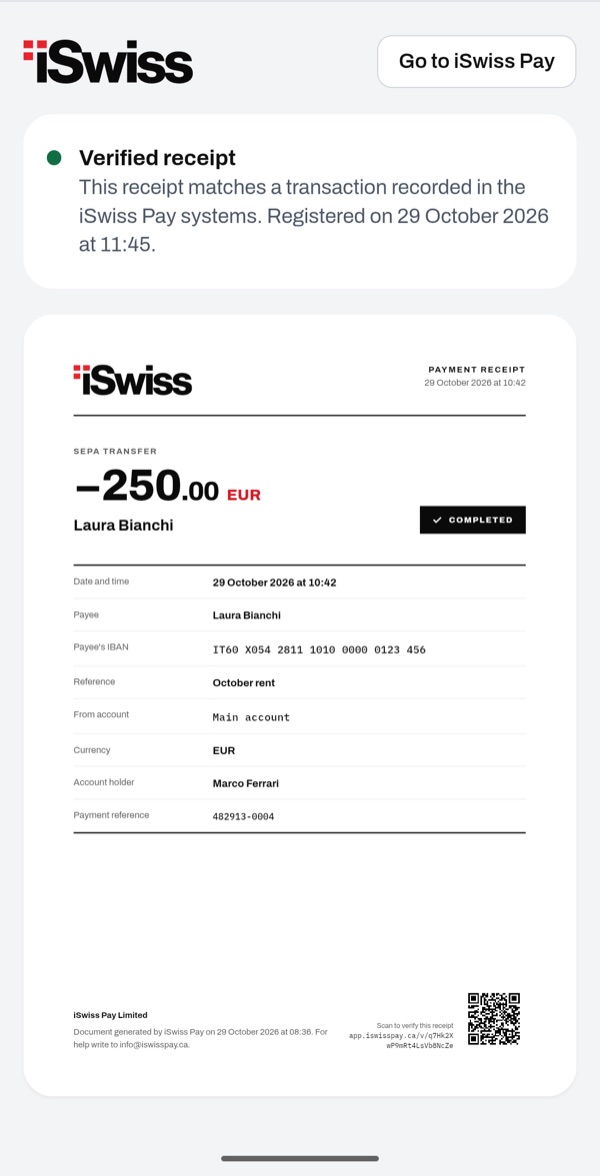
Every transaction has its own PDF receipt, with a QR code at the bottom. Whoever gets the receipt can scan the code and open the check page. That way they see that the receipt matches a transaction recorded in the iSwiss Pay systems.
- 11
Open your transactions
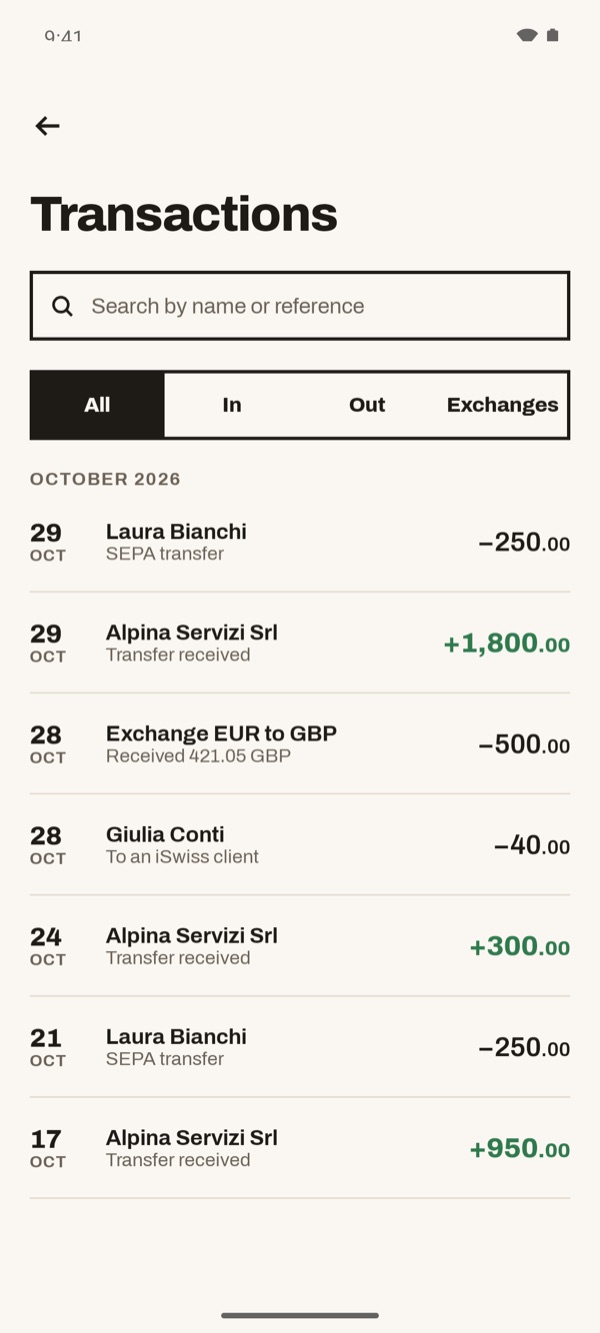
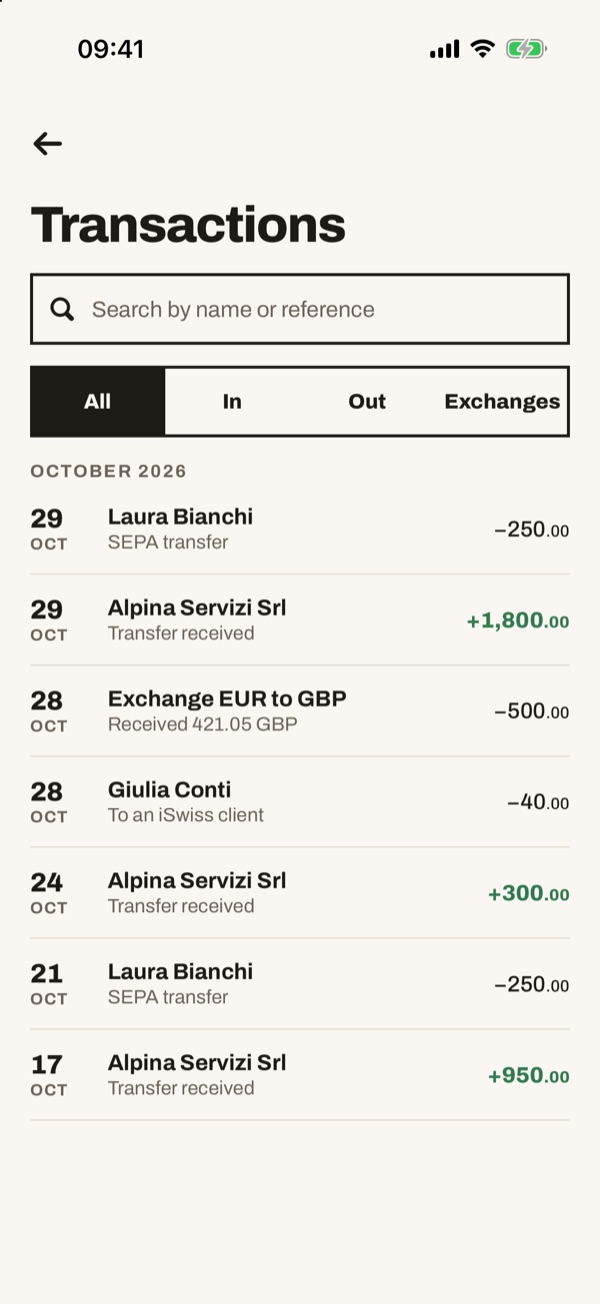
Open the “Transactions” screen, for example from “See all” in Home. You can search by name or reference text, or filter with “All”, “In”, “Out” and “Exchanges”. Tap the transaction you want.
- 22
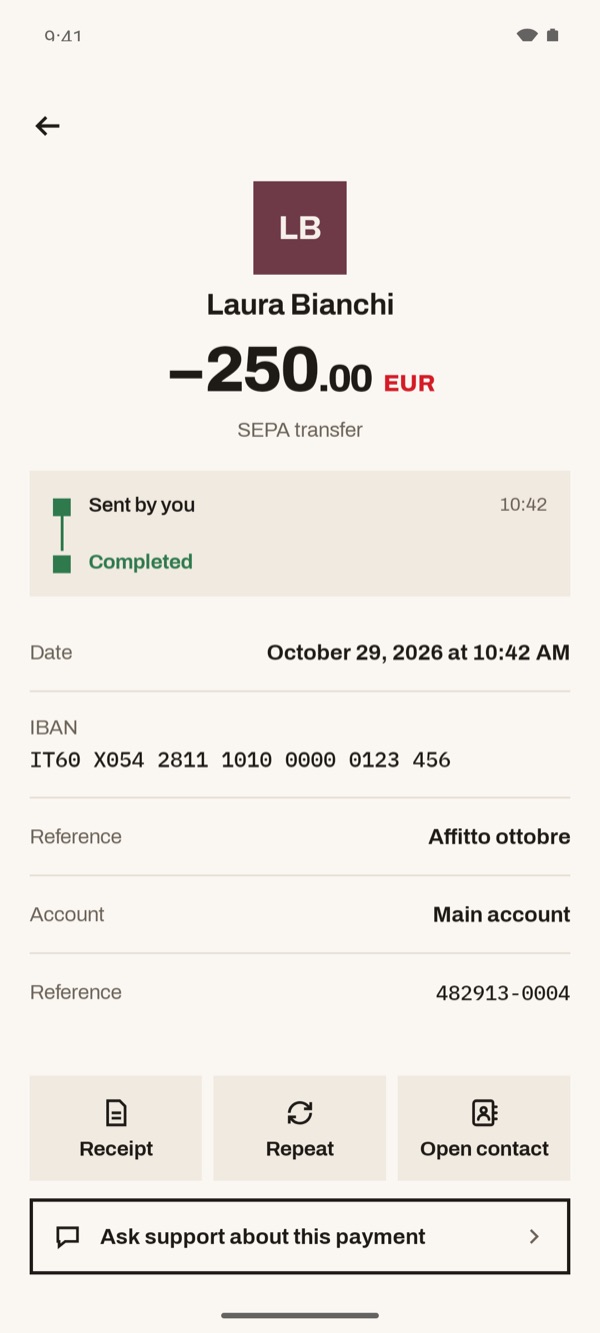
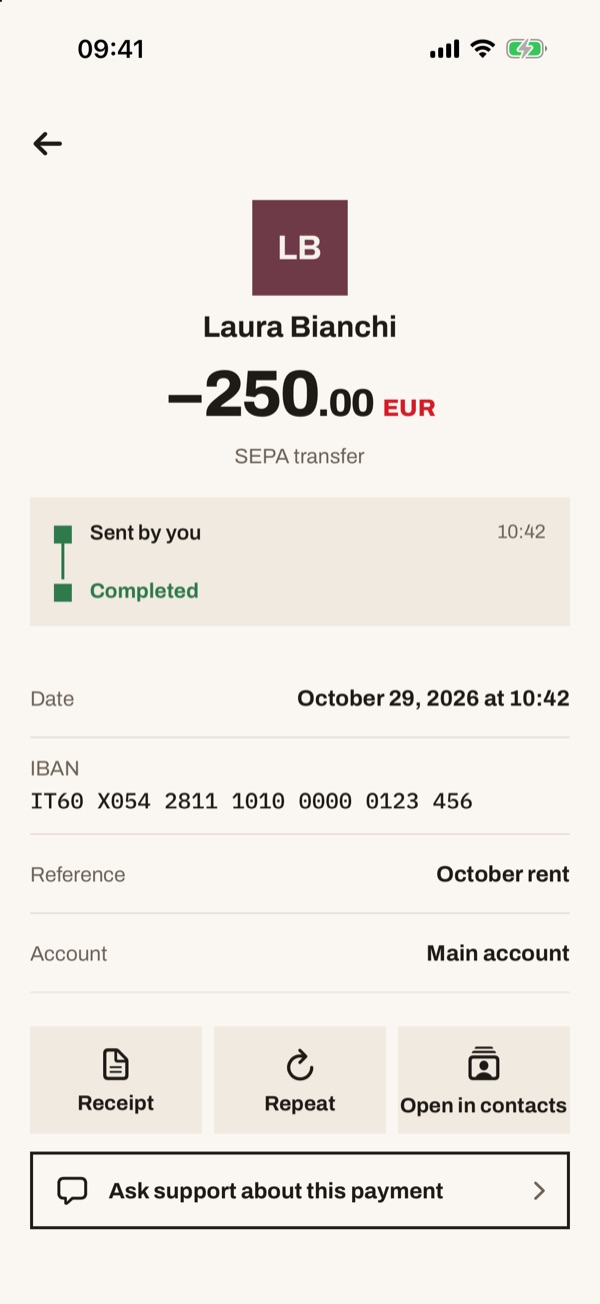
Tap “Receipt”
In the transaction details you see amount, status, date, IBAN, reference text and account. At the bottom tap “Receipt”.
- 33
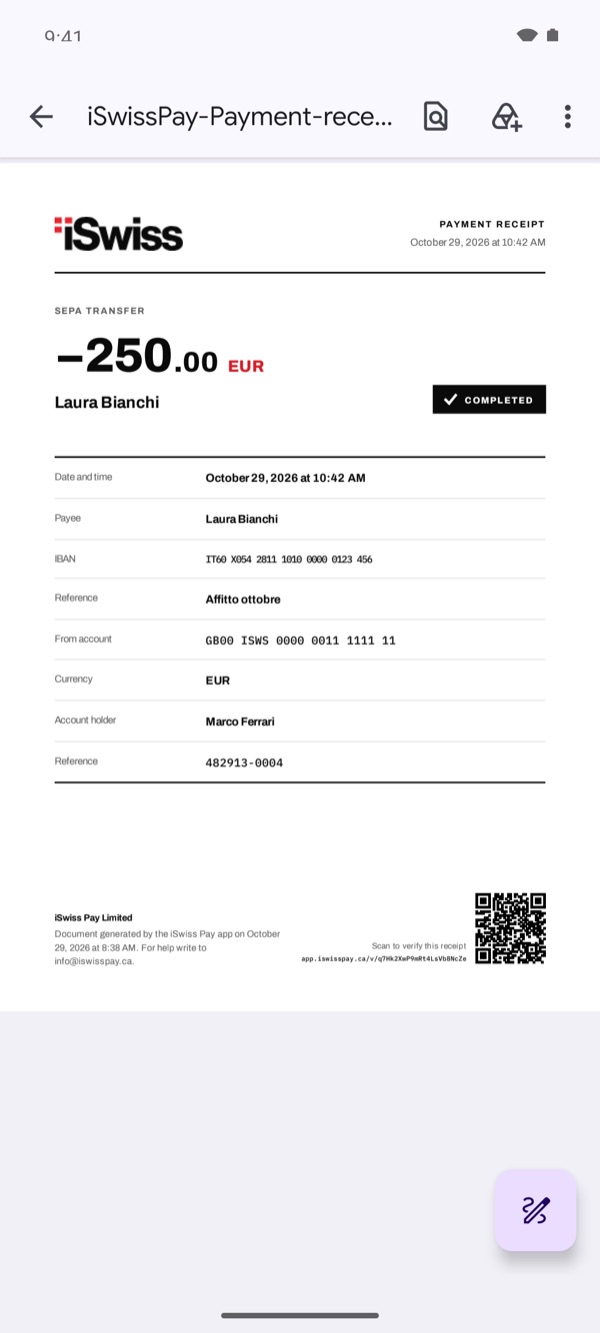
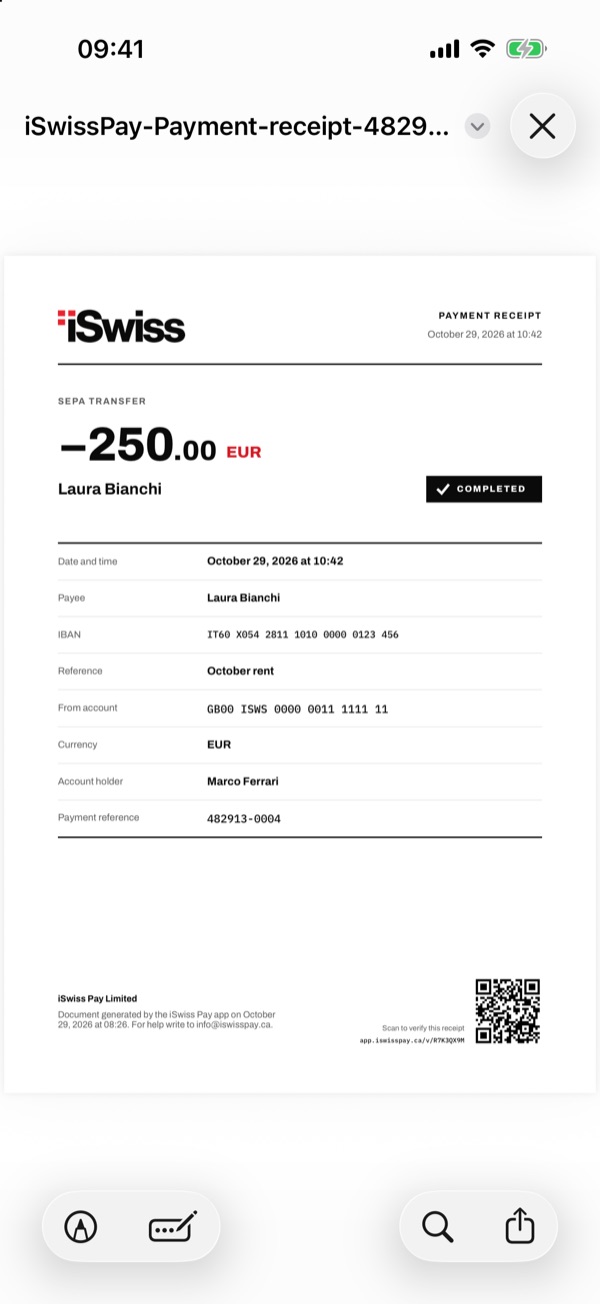
Look at the PDF receipt
The “Payment receipt” opens as a PDF, with all the transaction details and the “Reference”. At the bottom right is the QR code with the words “Scan to verify this receipt”. From here you can save or share the file.
- 44
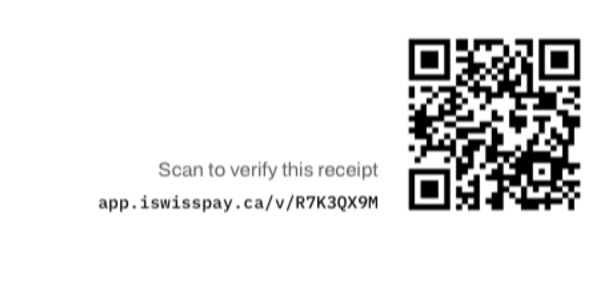
Scan the QR code
Whoever has the receipt scans the QR code with their phone camera. Below the words “Scan to verify this receipt” there is also the address of the check page, to open by hand if needed.
- 55
Read the result of the check
The iSwiss check page opens. If “Verified receipt” appears at the top, the receipt matches a transaction recorded in the iSwiss Pay systems. Below you see the original receipt: compare it with the one you have.