From your profile you check your personal data and change your contact details. You choose the language and look of the app, and manage sign-in and linked devices. If needed, you can block your account for a while.
- 11
Open your profile
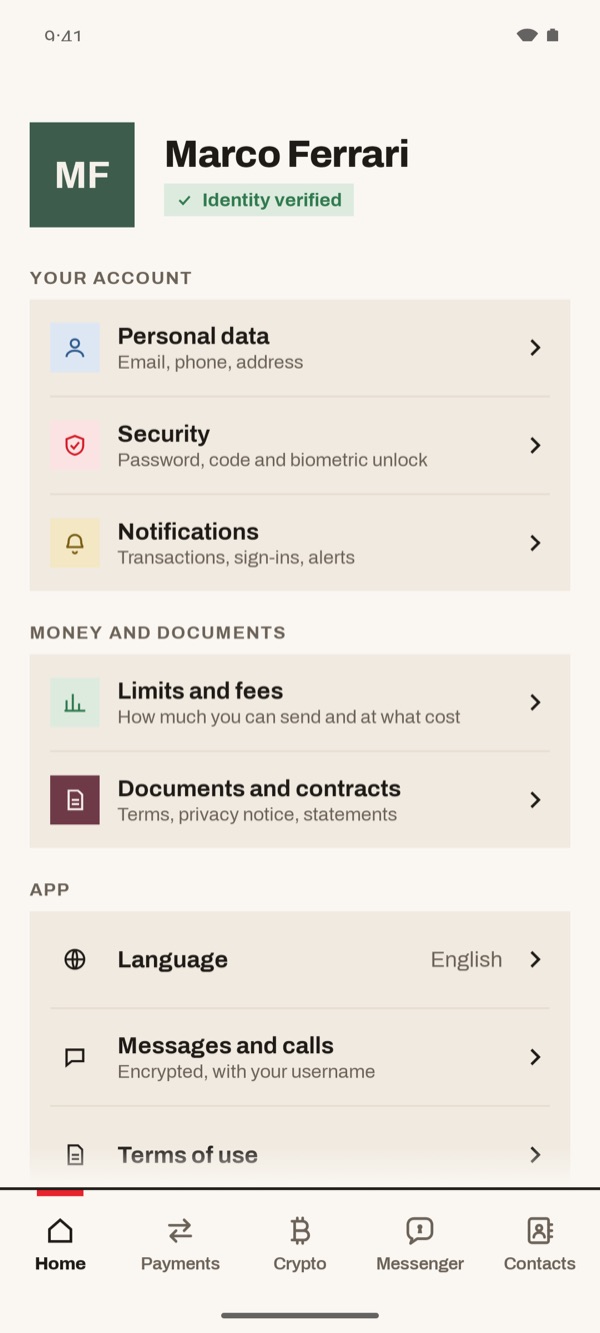
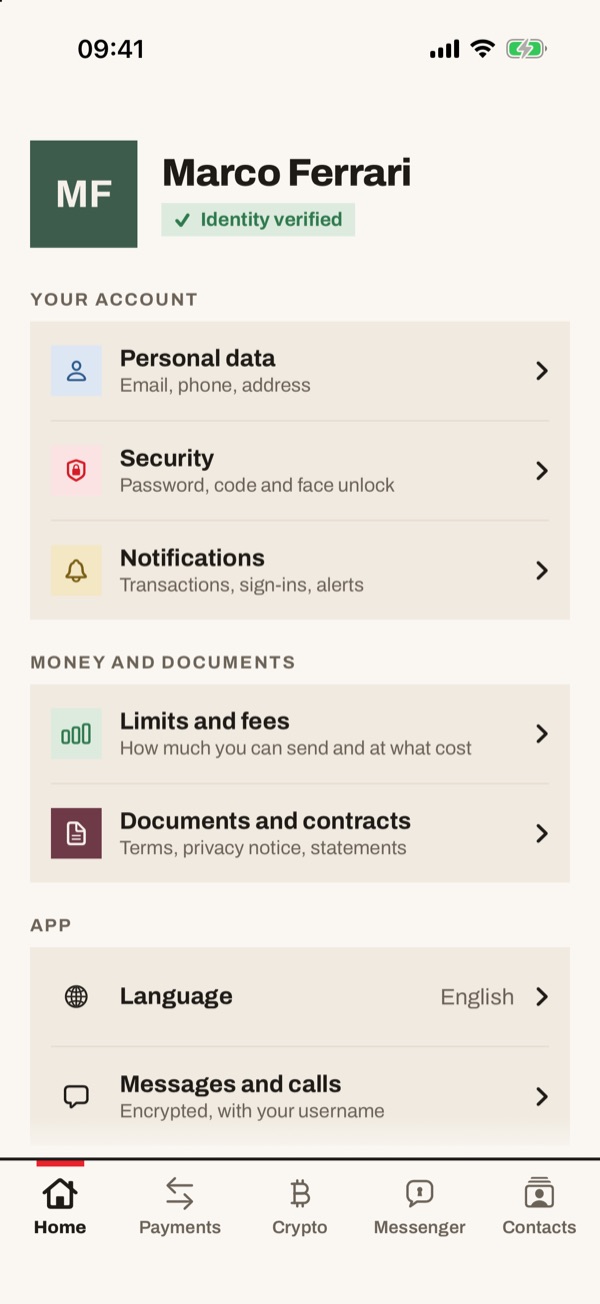
At the top you find your name and the status “Identity verified”. Below are the sections “YOUR ACCOUNT”, “MONEY AND DOCUMENTS” and “APP”.
- 22
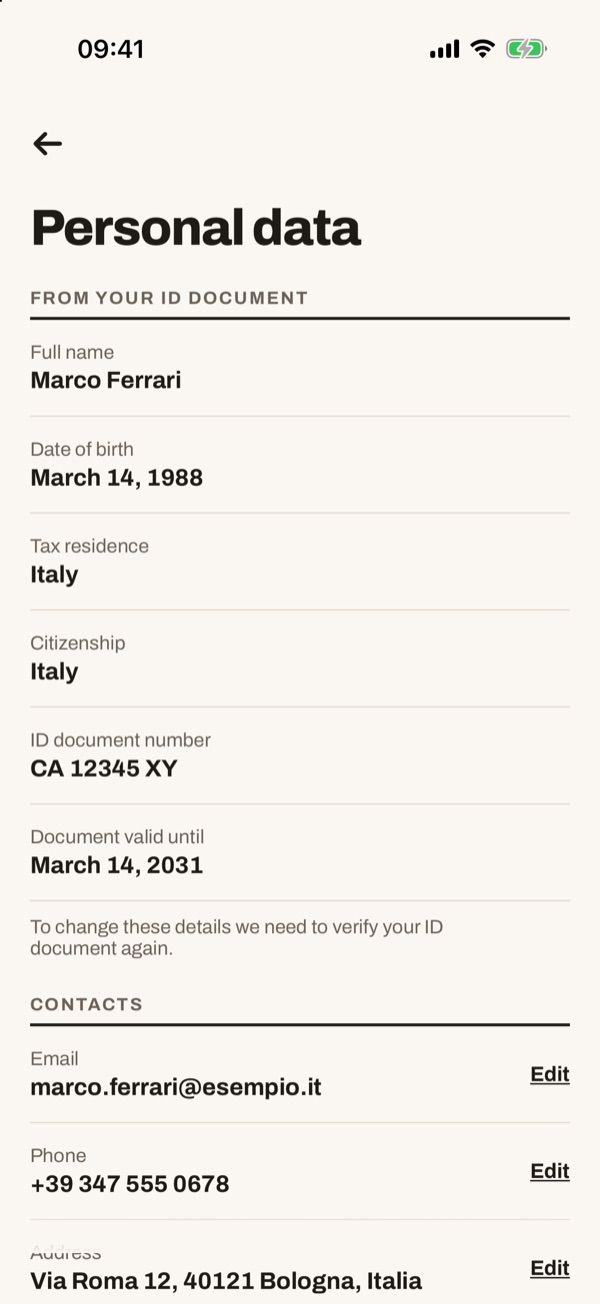
Check your personal data
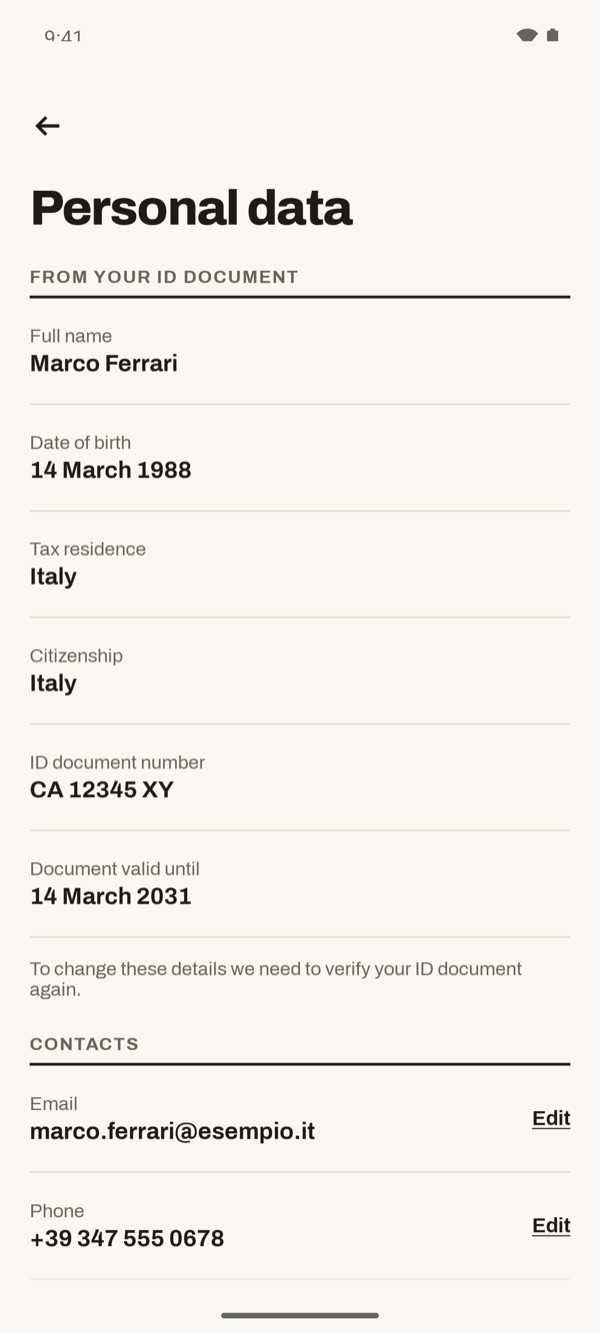
Tap “Personal data”. Under “FROM YOUR ID DOCUMENT” you see name, date of birth, tax residence, citizenship and document details: to change them you need a new document verification. Under “CONTACTS” you find email, phone and address, each with “Edit”.
- 33
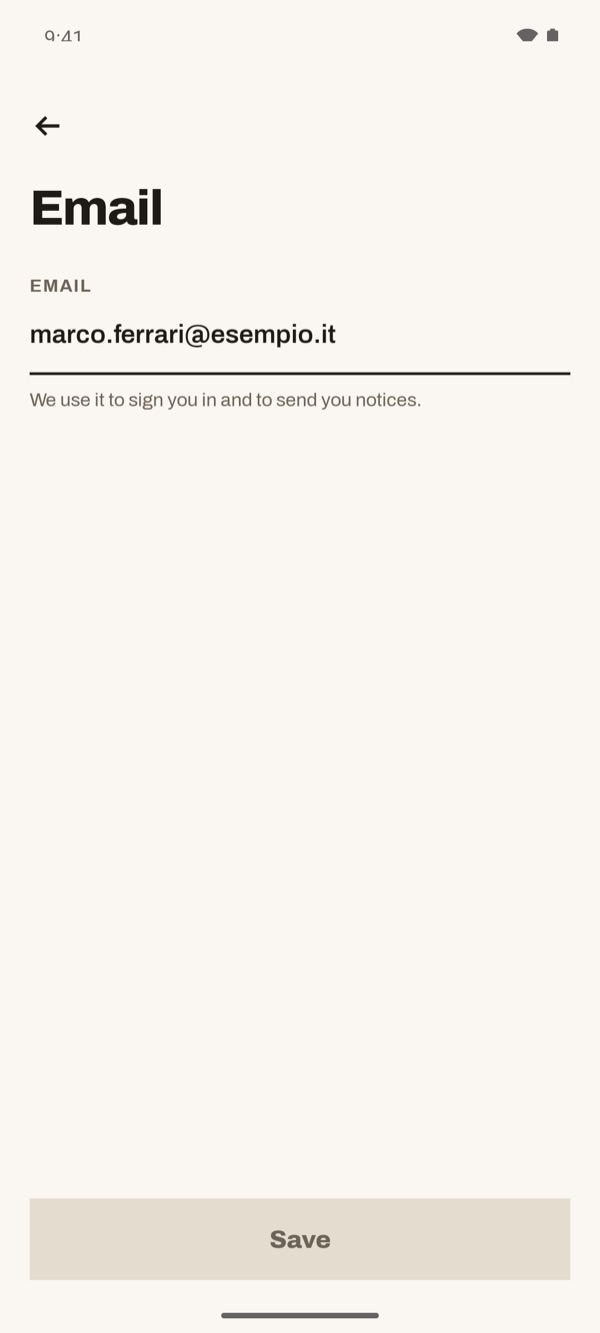
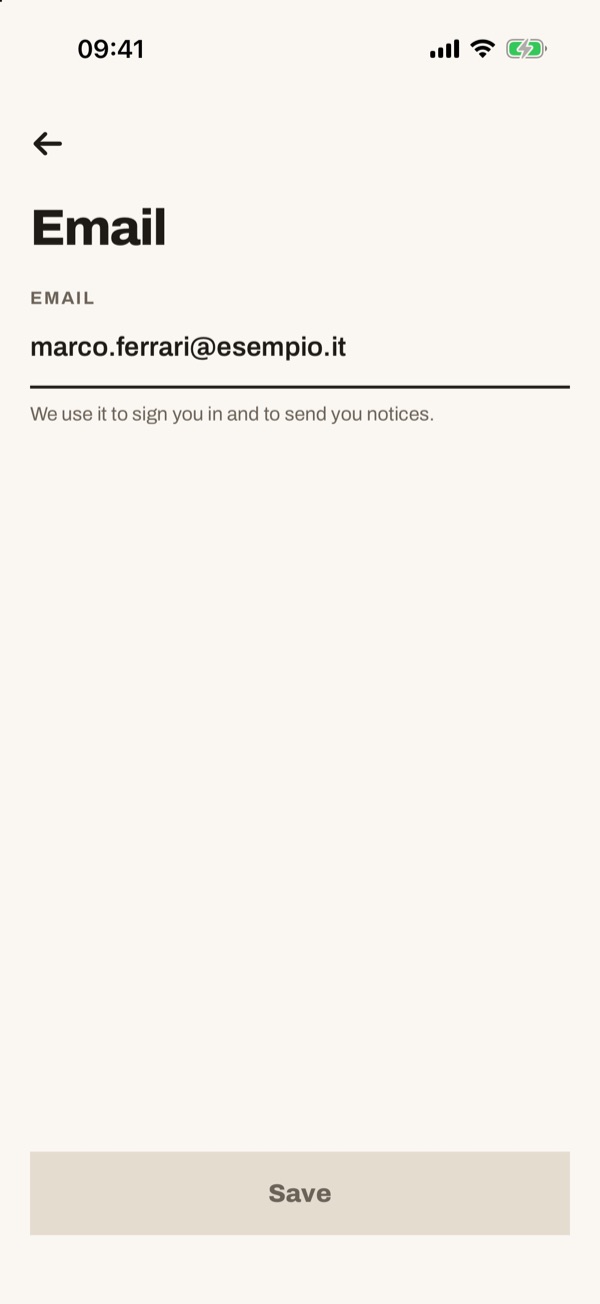
Change your email
Tap “Edit” next to the email. Type the new address and tap “Save”. This email is used for sign-in and for alerts.
- 44
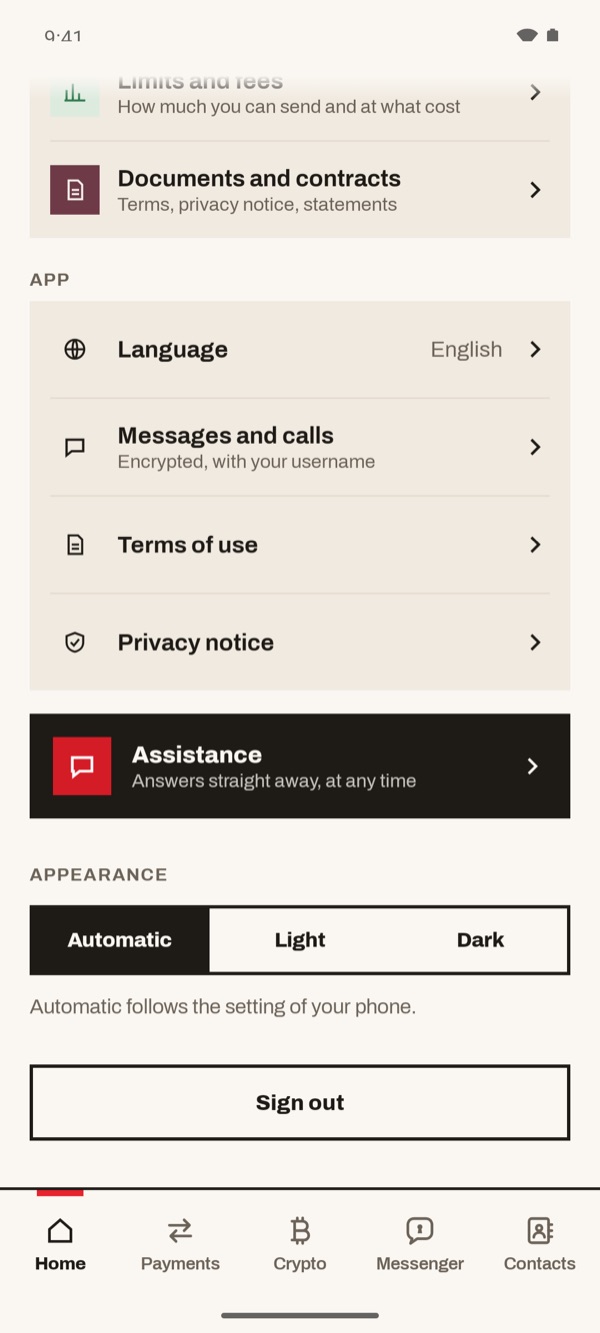
Choose language and look, or sign out
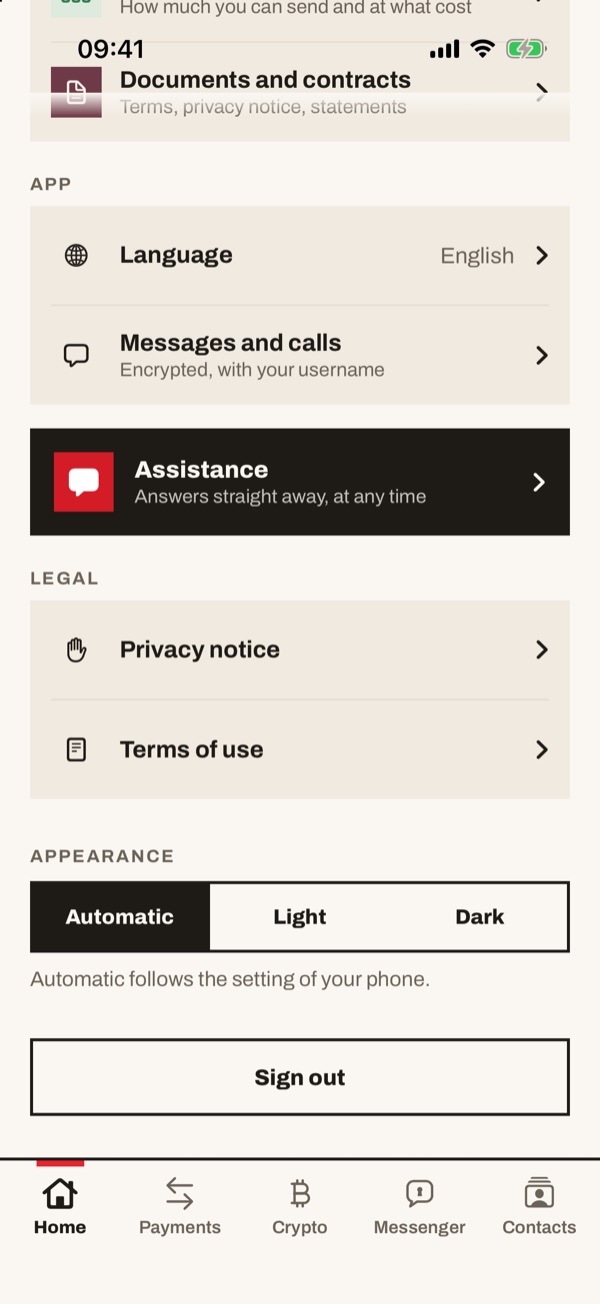
Scroll down. Tap “Language” to change the language of the app. Under “APPEARANCE” choose “Automatic”, “Light” or “Dark”: “Automatic” follows your phone's setting. To leave the app, tap “Sign out”.
- 55
Set up sign-in security
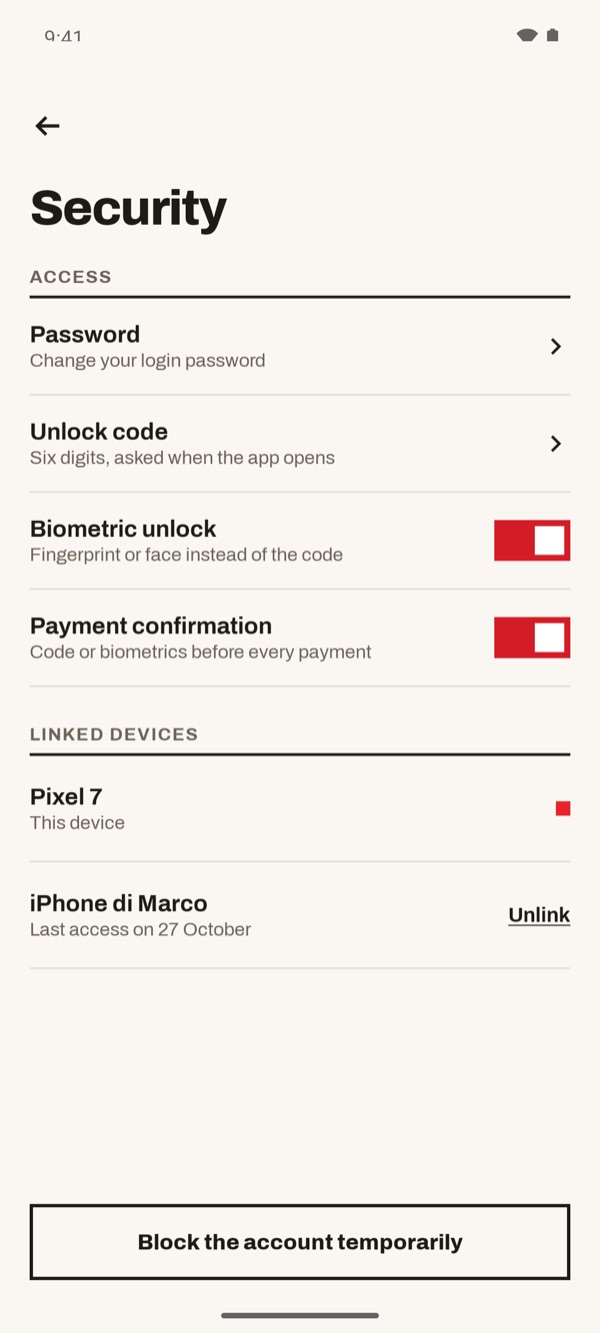
Go back to the top of your profile and tap “Security”. Under “ACCESS” you can change your “Password” and the six-digit “Unlock code” asked when you open the app. With the switches you turn on “Biometric unlock” (fingerprint or face instead of the code) and “Payment confirmation” (code or fingerprint before every payment).
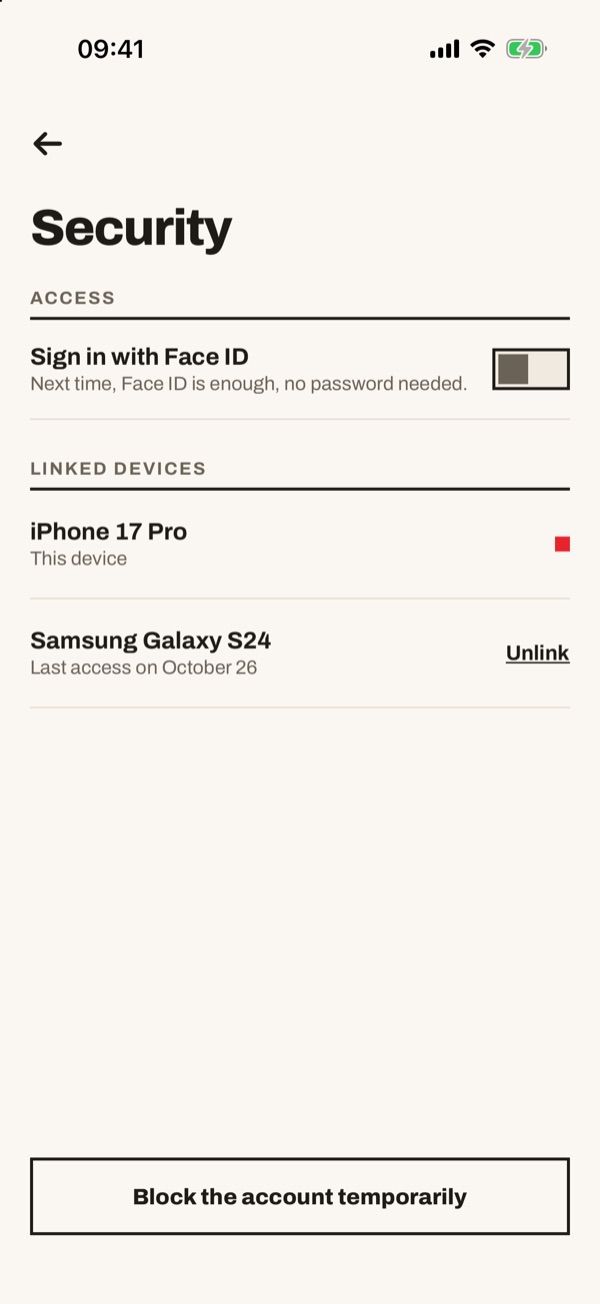
Go back to the top of your profile and tap “Security”. Under “ACCESS” turn on the “Sign in with Face ID” switch: next time Face ID is enough, with no password.
- 66
Check your linked devices
On the same page, under “LINKED DEVICES”, you see the phone you are using (“This device”) and the others with the date of their last sign-in. If you don't recognise a device, tap “Unlink”. At the bottom you find “Block the account temporarily”.
- 77
Ask the assistant to block your account
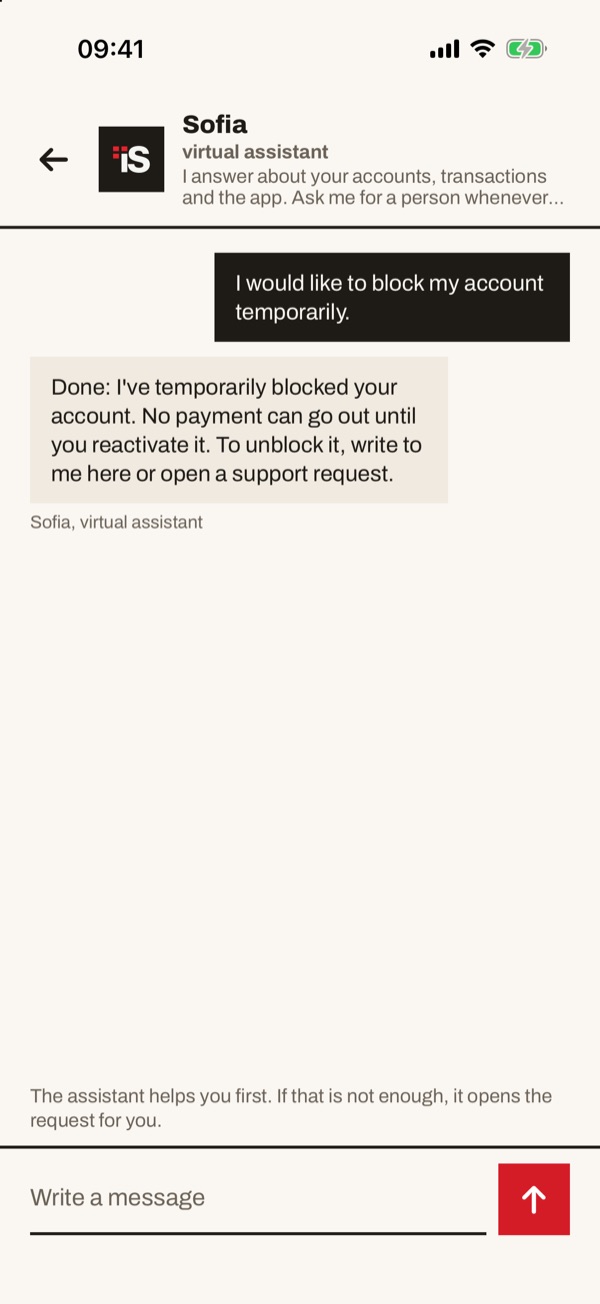
You can also ask the virtual assistant to block your account. Type, for example, “I would like to block my account temporarily.” and tap the arrow to send. The assistant helps you first; if that is not enough, it opens the request for you.
- 88
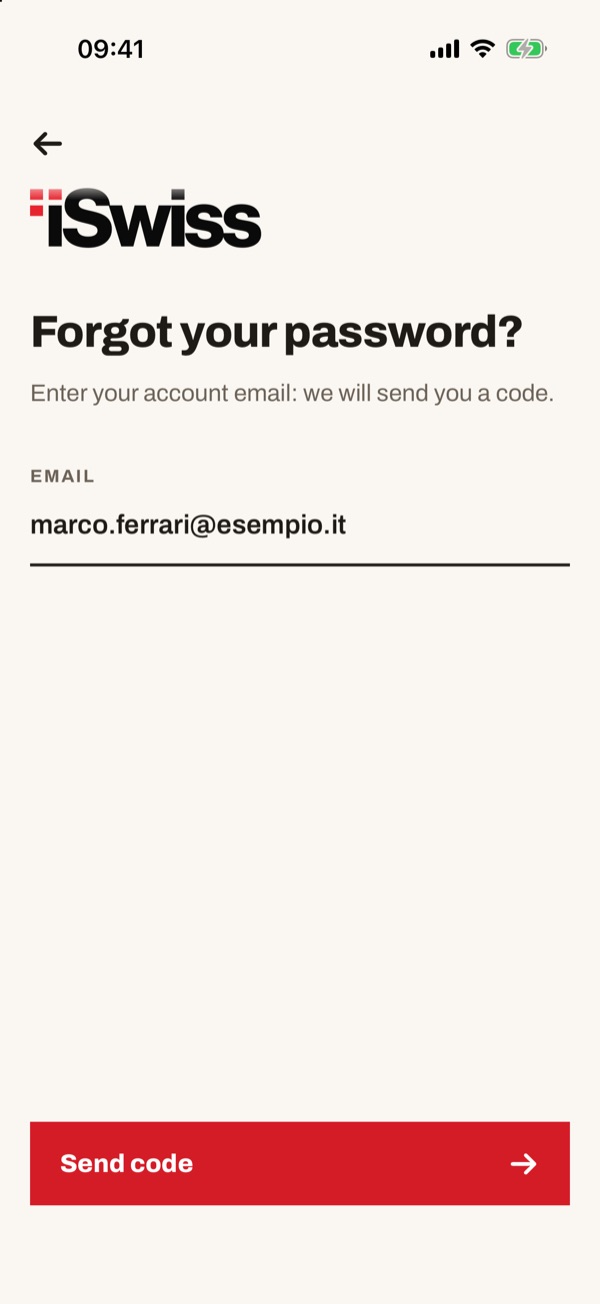
Forgot your password?
On the sign-in screen tap “Forgot your password?”. Type the email of your account and tap “Send code”: we send you a code.
- 99
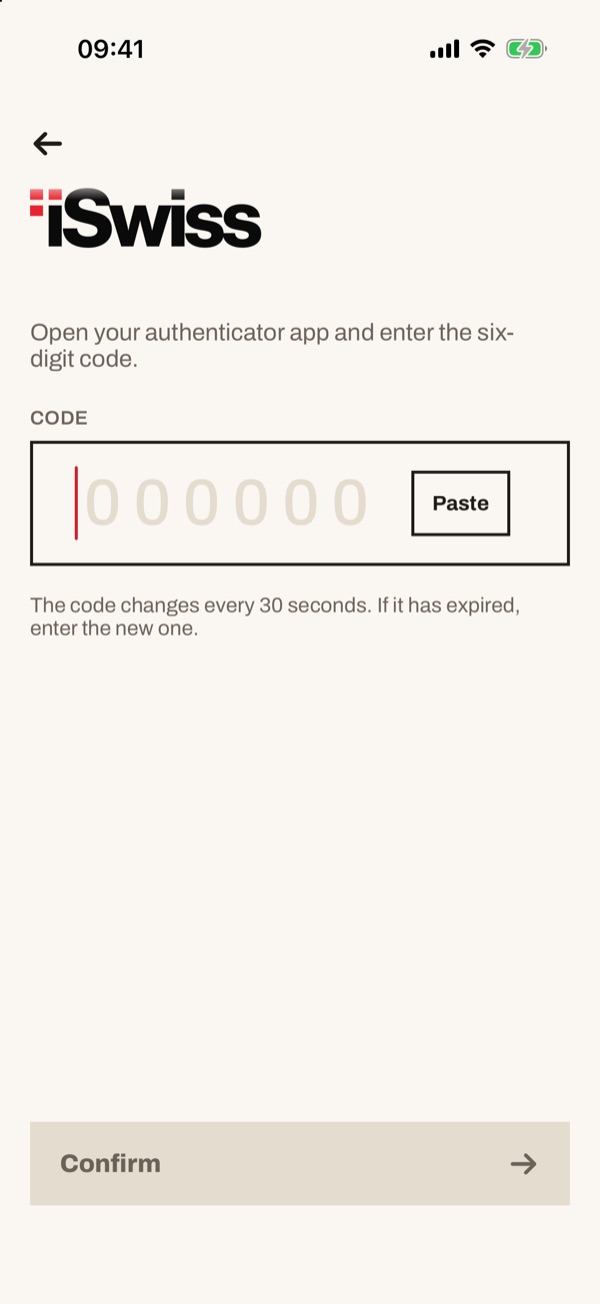
Code from the authenticator app
If you are asked, open your authenticator app and enter the six-digit code in the “CODE” field. You can also tap “Paste”. The code changes every 30 seconds: if it has expired, enter the new one and tap “Confirm”.
- 1010
After “Sign out”
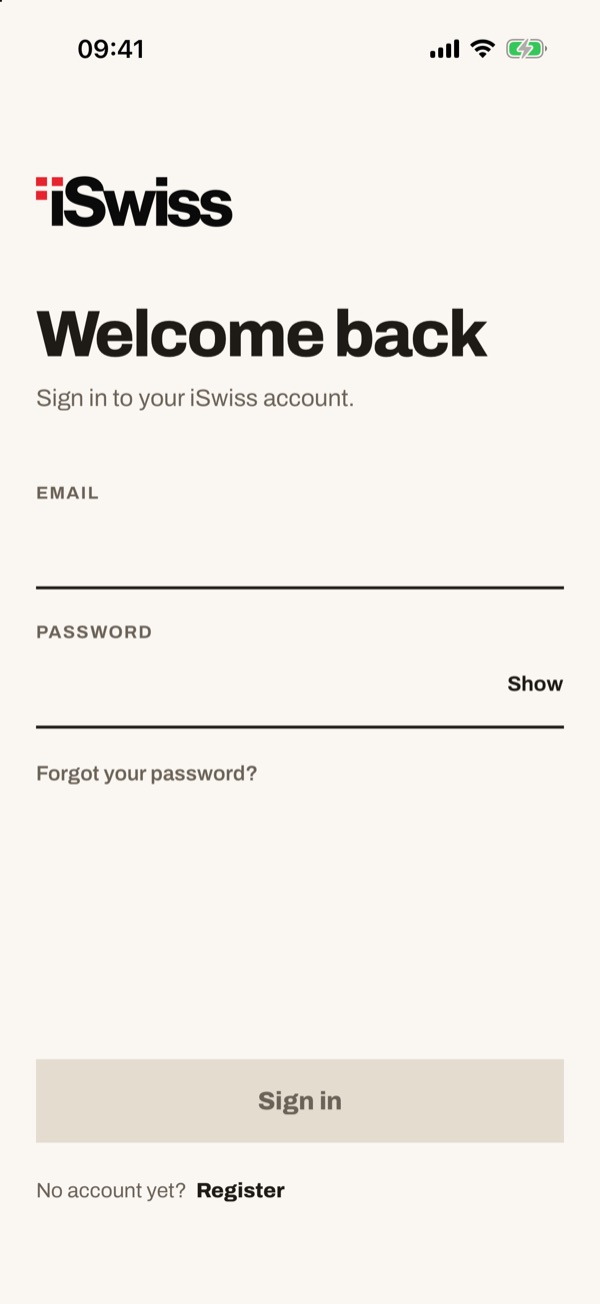
When you tap “Sign out” you go back to the “Welcome back” screen. To sign in again, enter your email and password and tap “Sign in”.