In Contacts you save the people and companies you often pay or talk to. From a contact's card you can send money without copying the IBAN again, and call or write if they have an iSwiss user.
- 11
Open Contacts
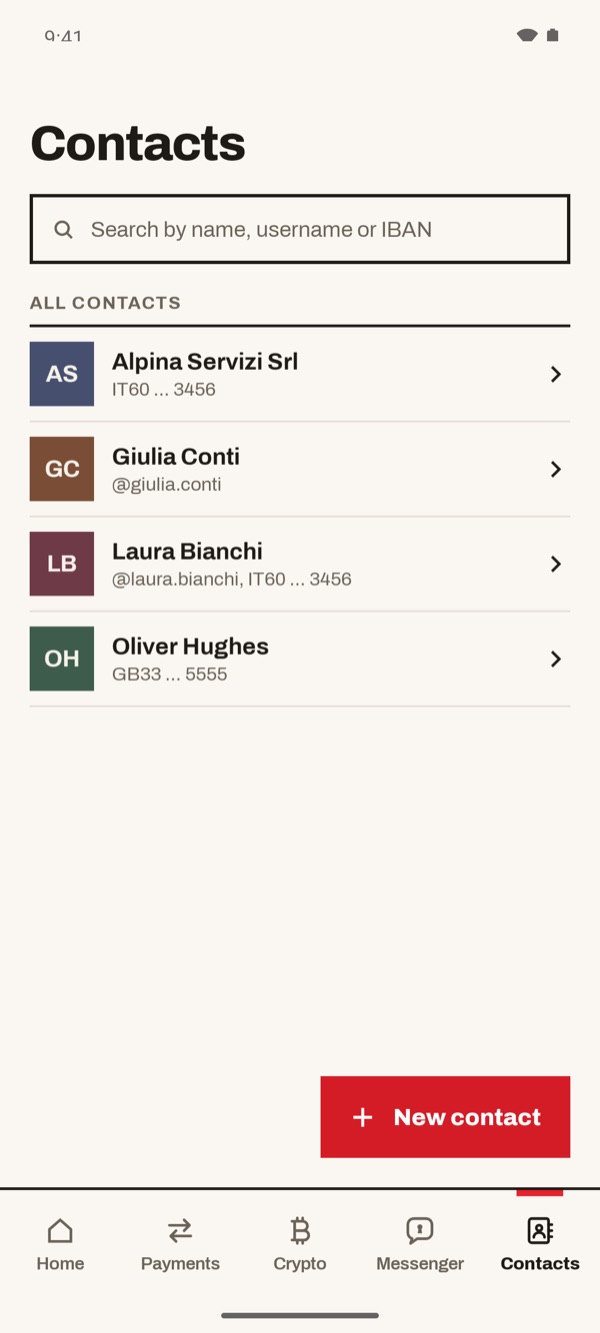
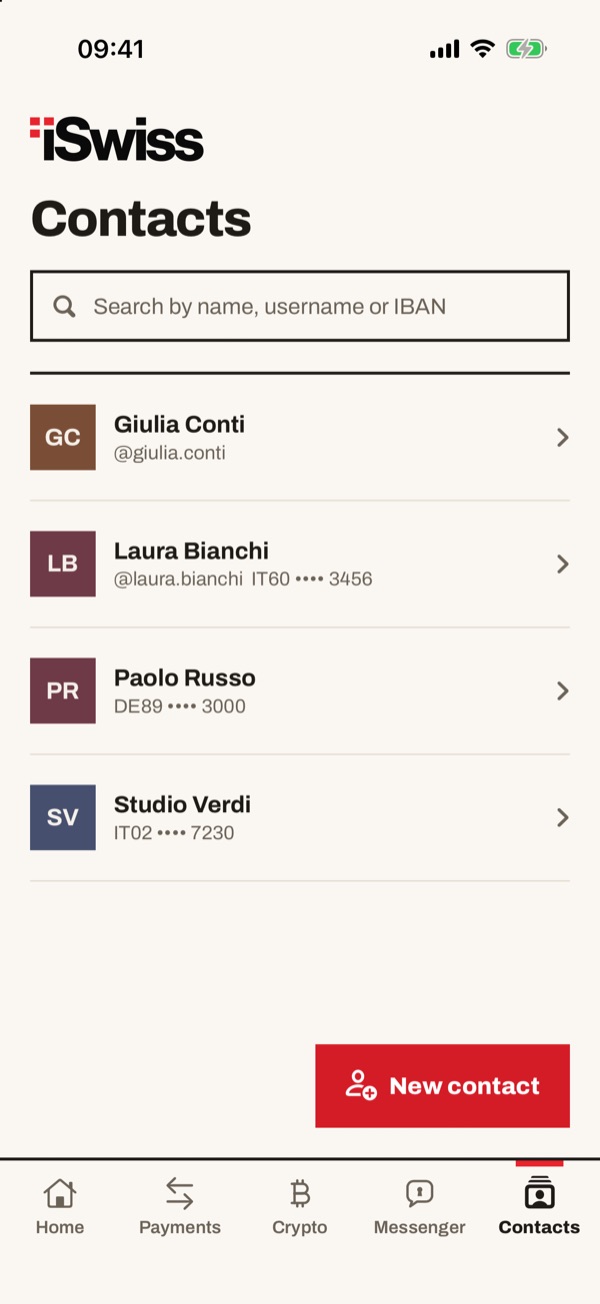
Tap “Contacts” in the bar at the bottom. You see the list of your contacts, with their iSwiss user or the start and end of their IBAN. At the top you can search by name, user or IBAN.
- 22
Open a contact's card
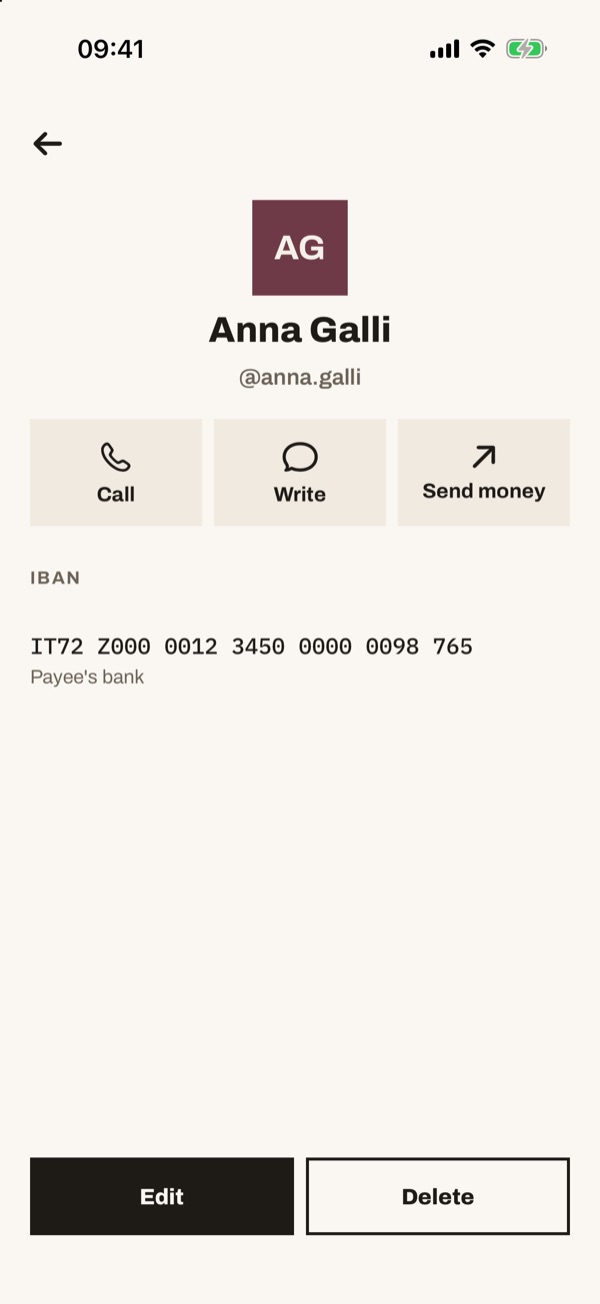
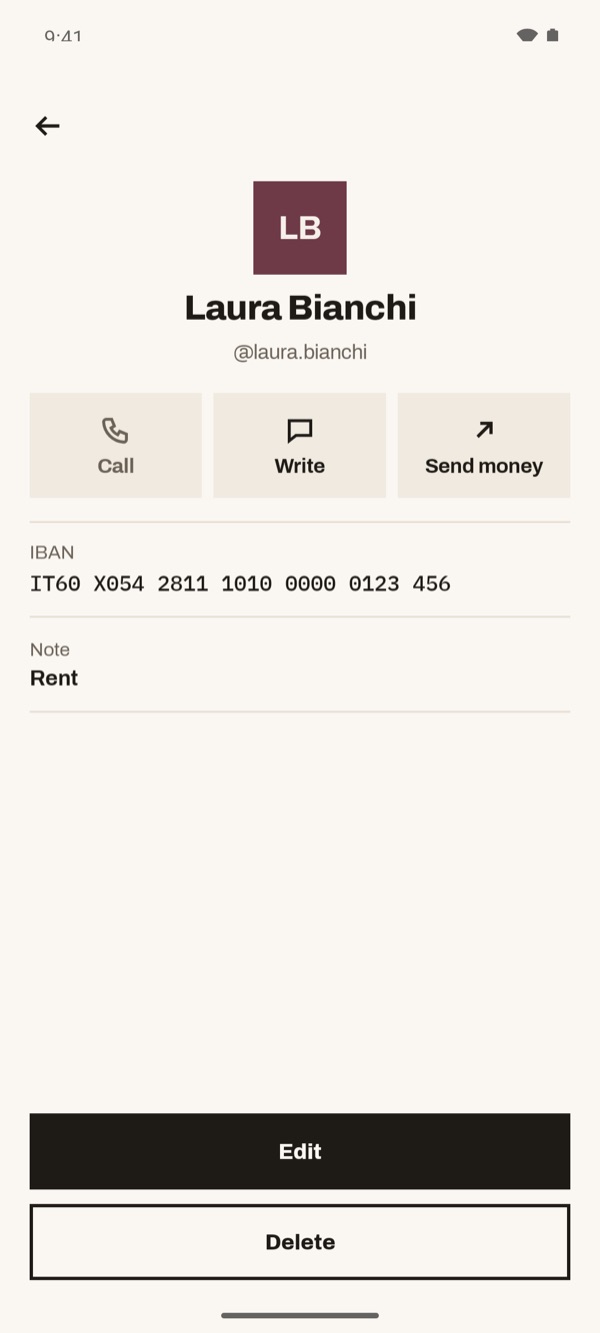
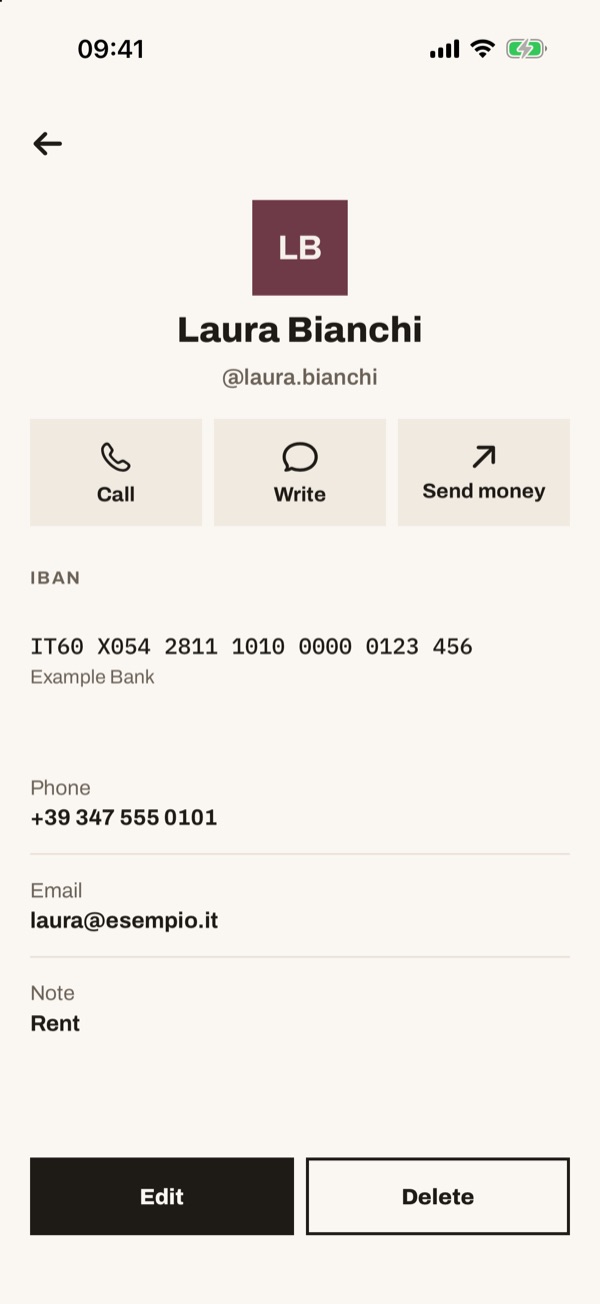
Tap a contact. On the card you find their details and the “Call”, “Write” and “Send money” buttons. At the bottom are “Edit” and “Delete”.
- 33
Contact with an IBAN only
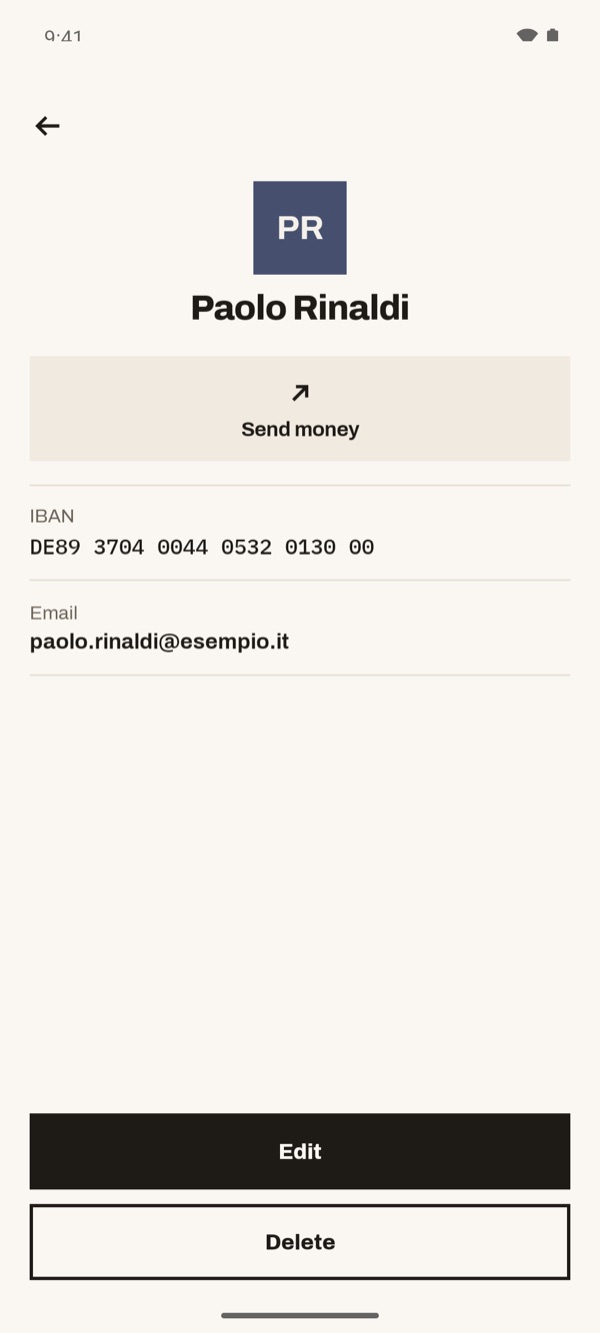
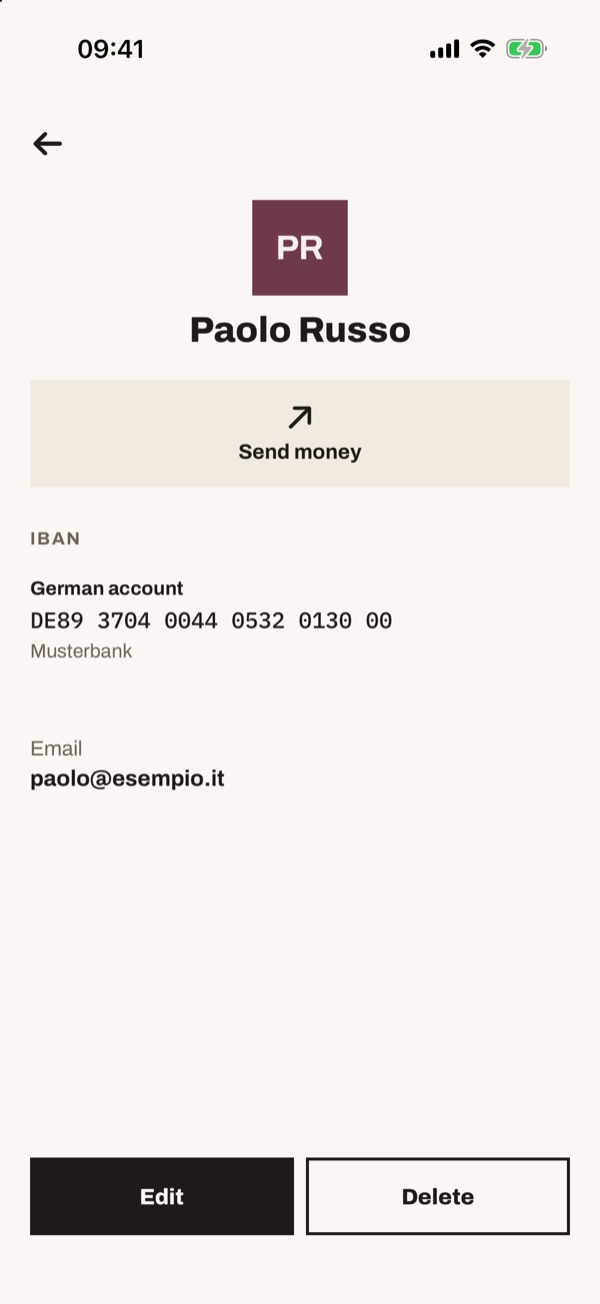
If the contact has no iSwiss user, on the card you only see “Send money”, with the IBAN and the other saved details.
If the contact has no iSwiss user, on the card you only see “Send money”. Under “IBAN” you find the account, with the name you gave it and the bank.
- 44
Send money from the contact
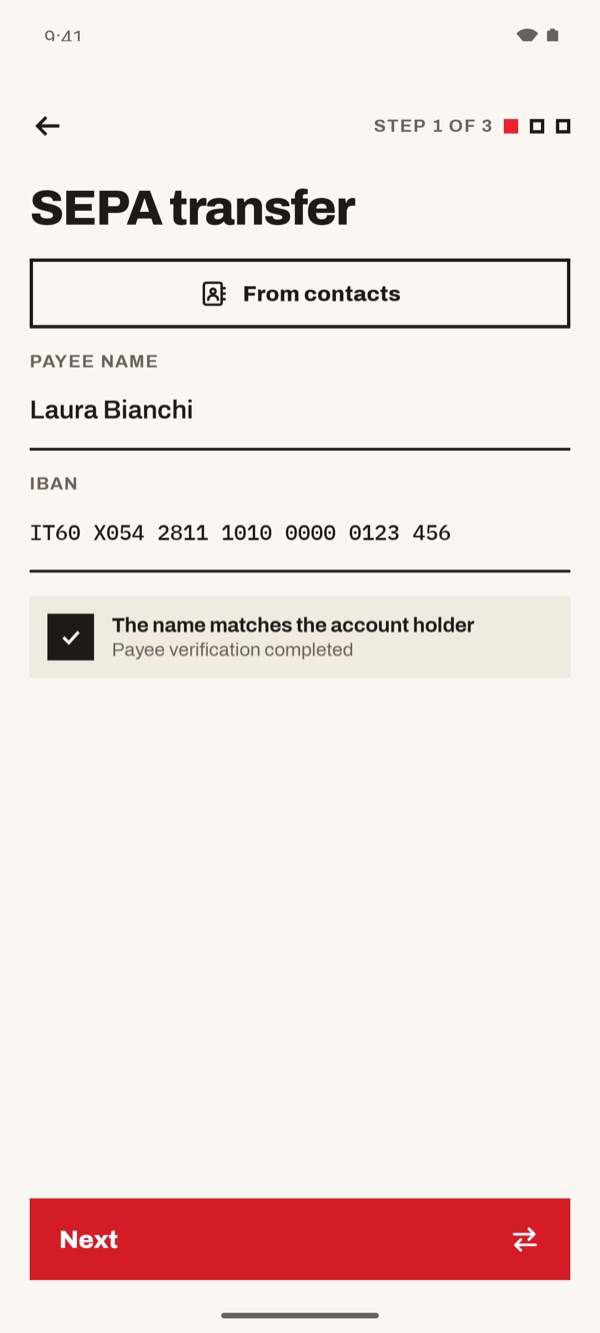
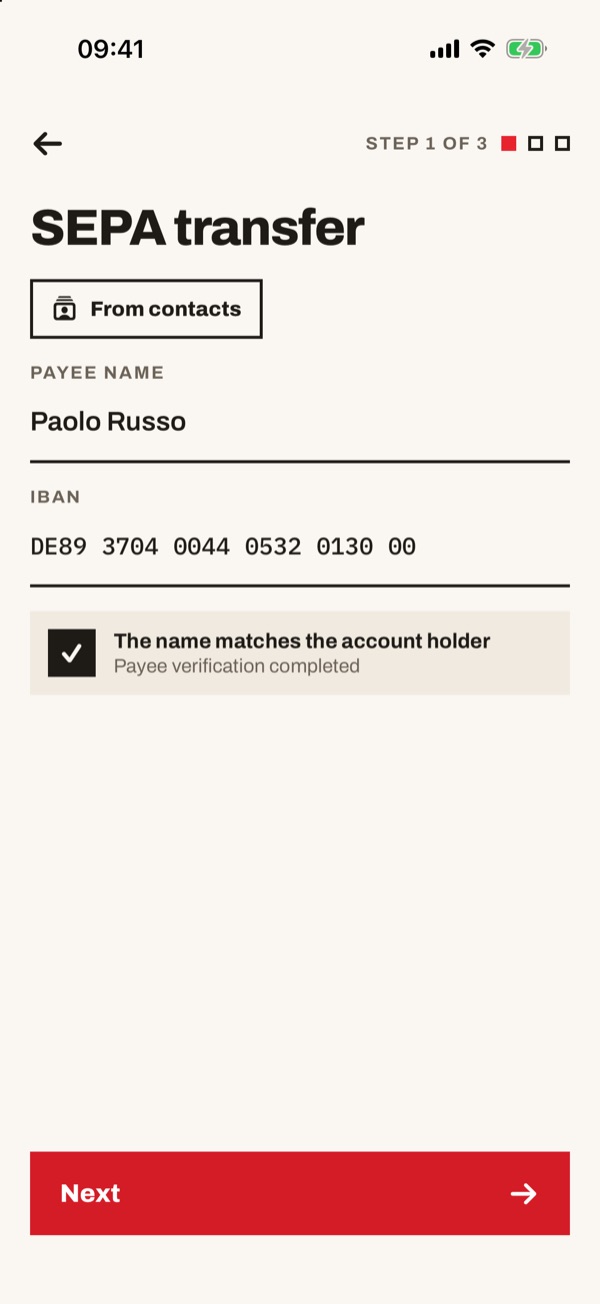
On the card tap “Send money”. The “SEPA transfer” opens with the payee's name and IBAN already filled in, and the confirmation “The name matches the account holder”. Tap “Next” and carry on as with a normal transfer.
- 55
Add a new contact
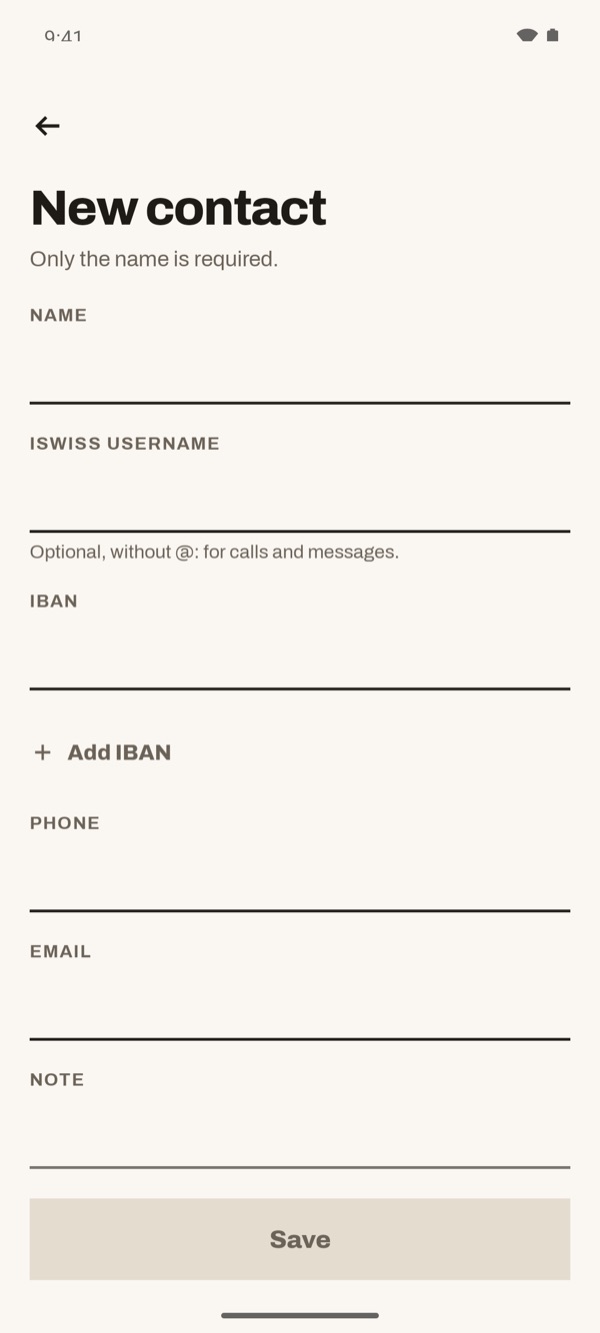
In the list tap “New contact”. A form opens with name, iSwiss user, IBAN, phone, email and note. Only the name is required.
In the list tap “New contact”. A form opens with name, iSwiss user, IBAN, phone, email and note.
- 66
Fill in the details
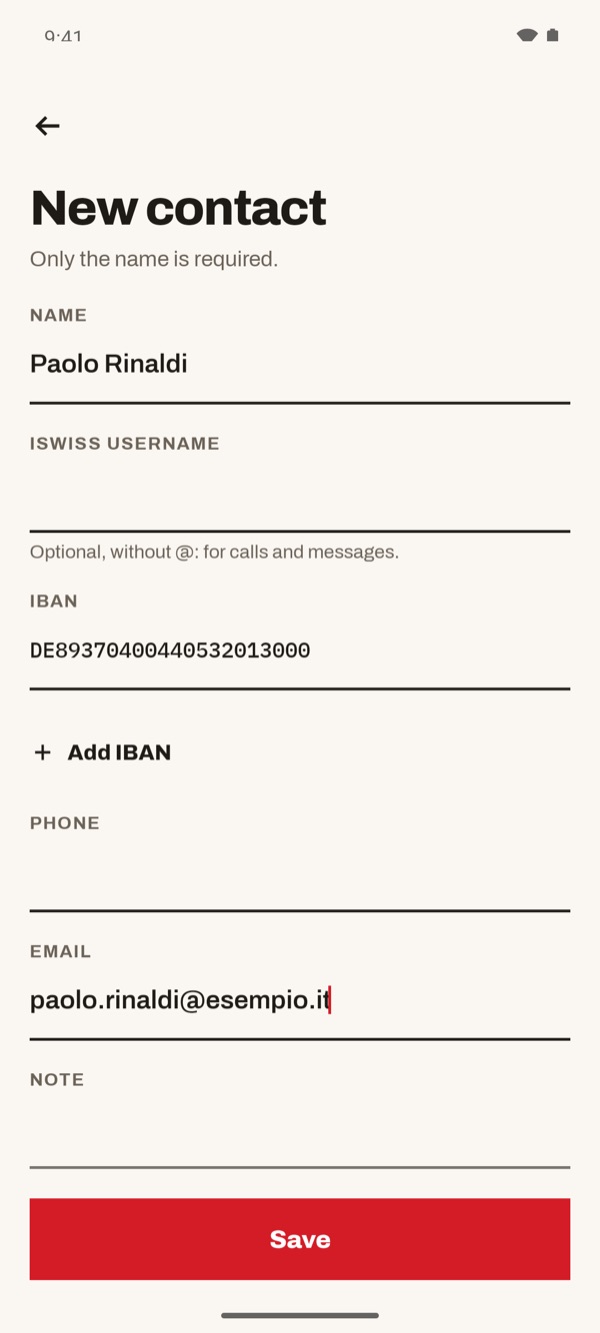
Type the name. If the person uses iSwiss, type their user without the @: it is needed for calls and messages. Type the IBAN and, if you like, phone, email and a note. With “Add IBAN” you can save more accounts. Then tap “Save”.
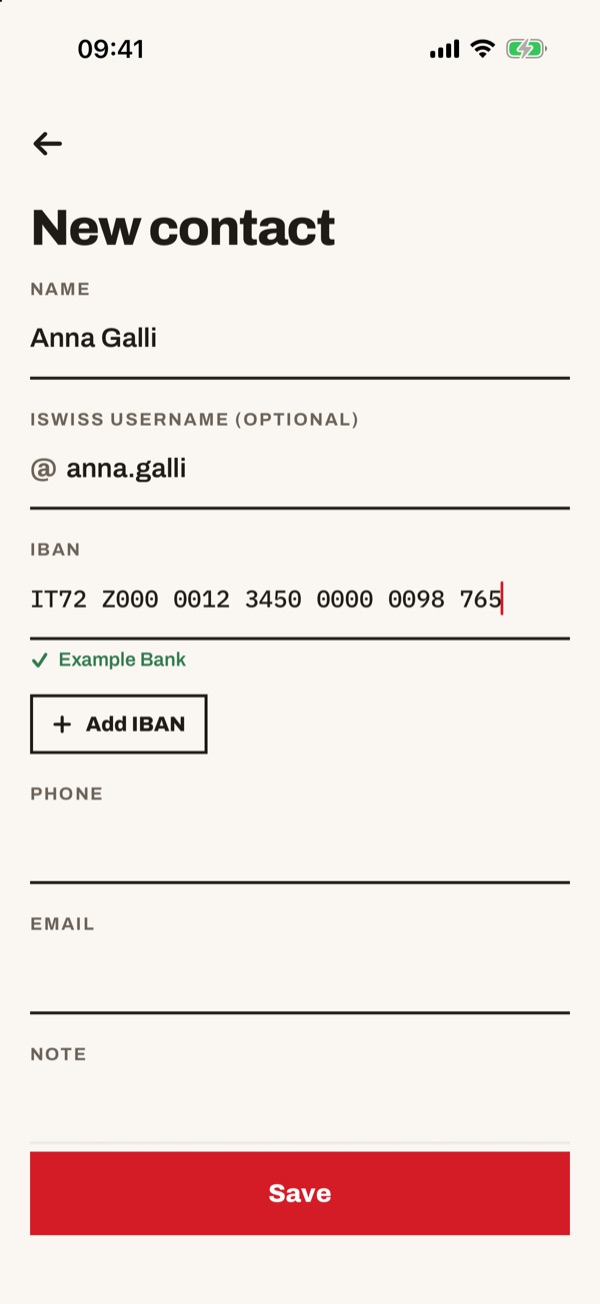
Type the name. If the person uses iSwiss, type their username after the @ (it is optional). Type the IBAN: the name of the bank appears below with a tick. If you like, add phone, email and a note; with “Add IBAN” you can save more accounts. Then tap “Save”.
- 77
Contact saved
The new contact's card opens with the details you entered. From here you can already send money, or tap “Edit” to change something.