From the Payments section you send money in a few steps: with a SEPA transfer to a European IBAN, to another iSwiss client or between your own accounts. Before you confirm you always see a summary, and at the end a receipt with the status and the reference.
- 11
Open Payments and choose the type
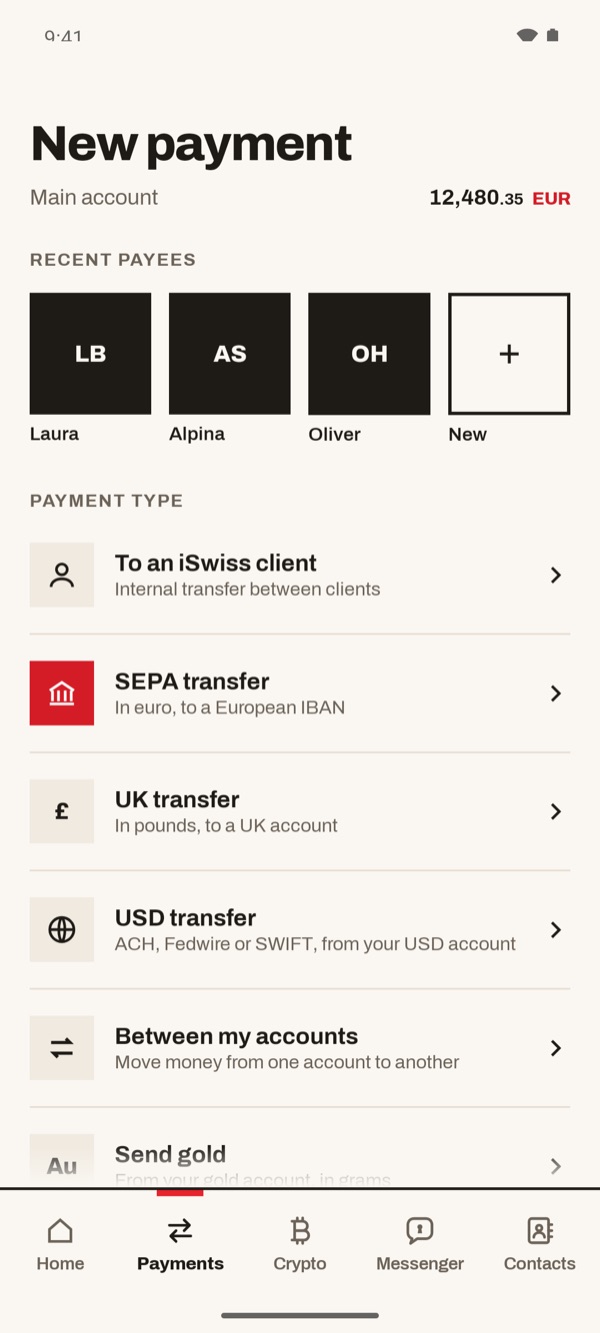
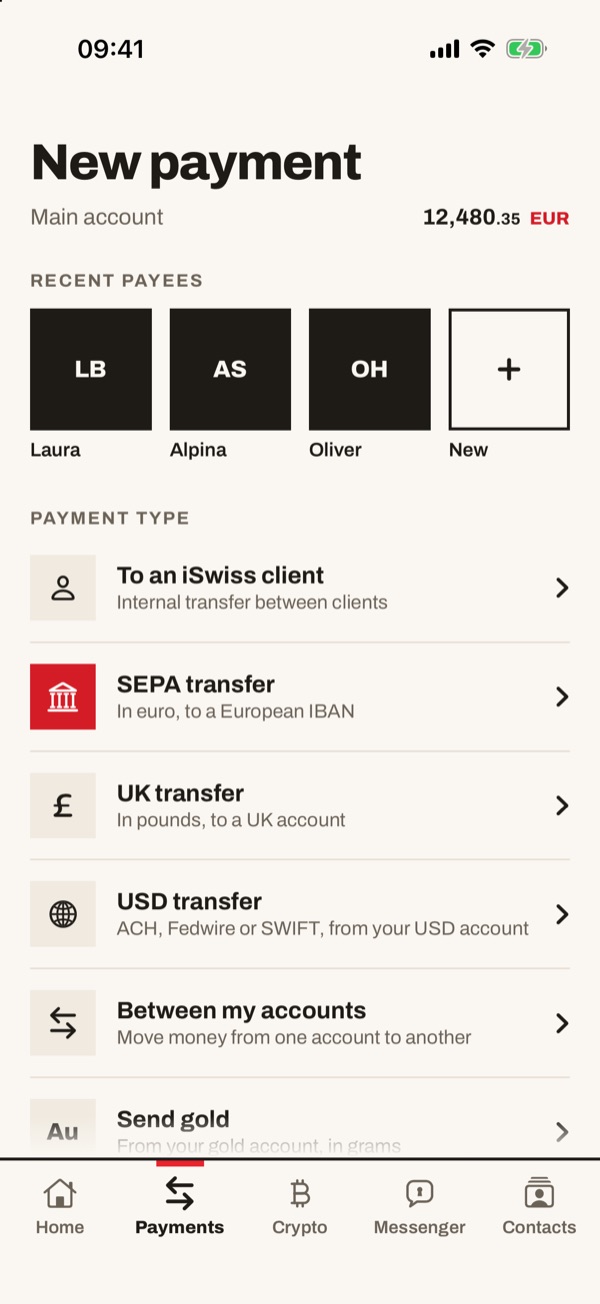
Tap “Payments” in the bar at the bottom. At the top you see the account you pay from and its balance, then “Recent payees”. Under “Payment type” choose how to pay: in this guide we look at “SEPA transfer”, “To an iSwiss client” and “Between my accounts”.
- 22
SEPA transfer: payee and IBAN
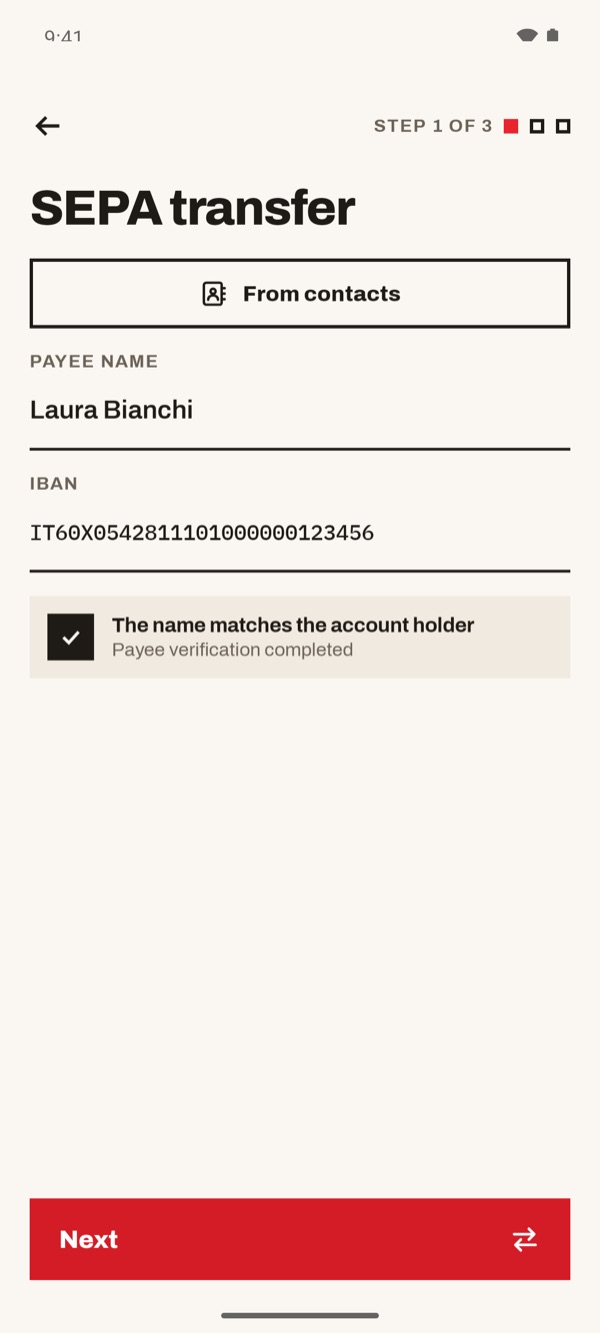
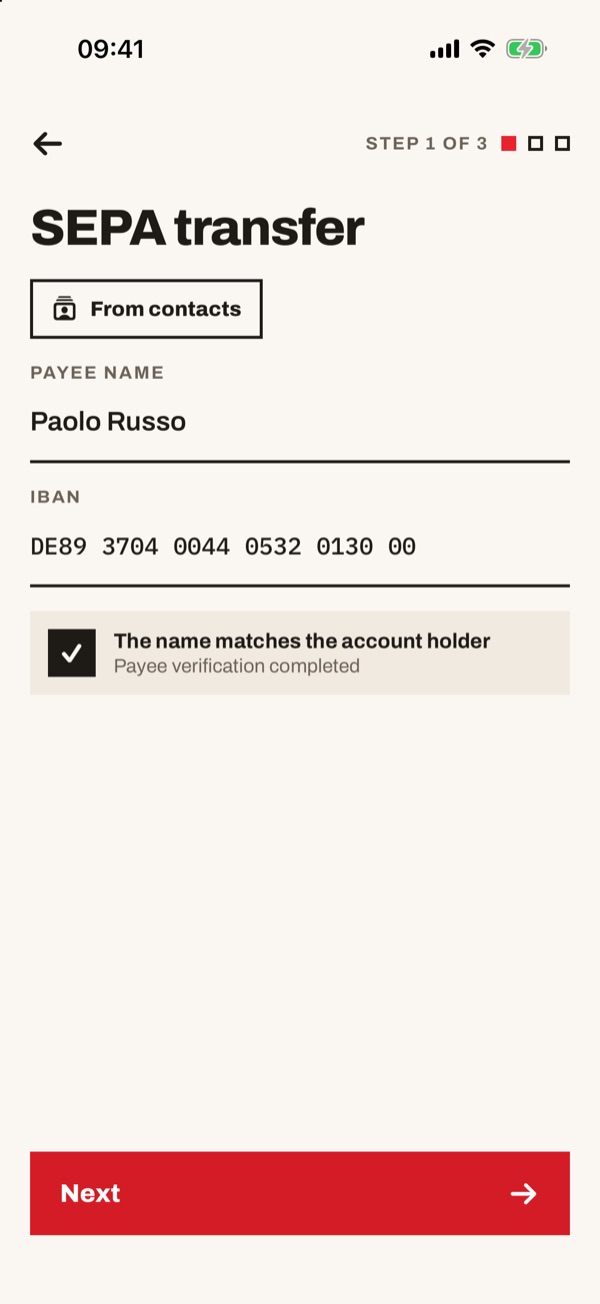
Tap “SEPA transfer”. Type the payee's name and IBAN, or tap “From contacts” to pick one of your contacts. When “The name matches the account holder” appears, tap “Next”.
- 33
SEPA transfer: amount and reference text
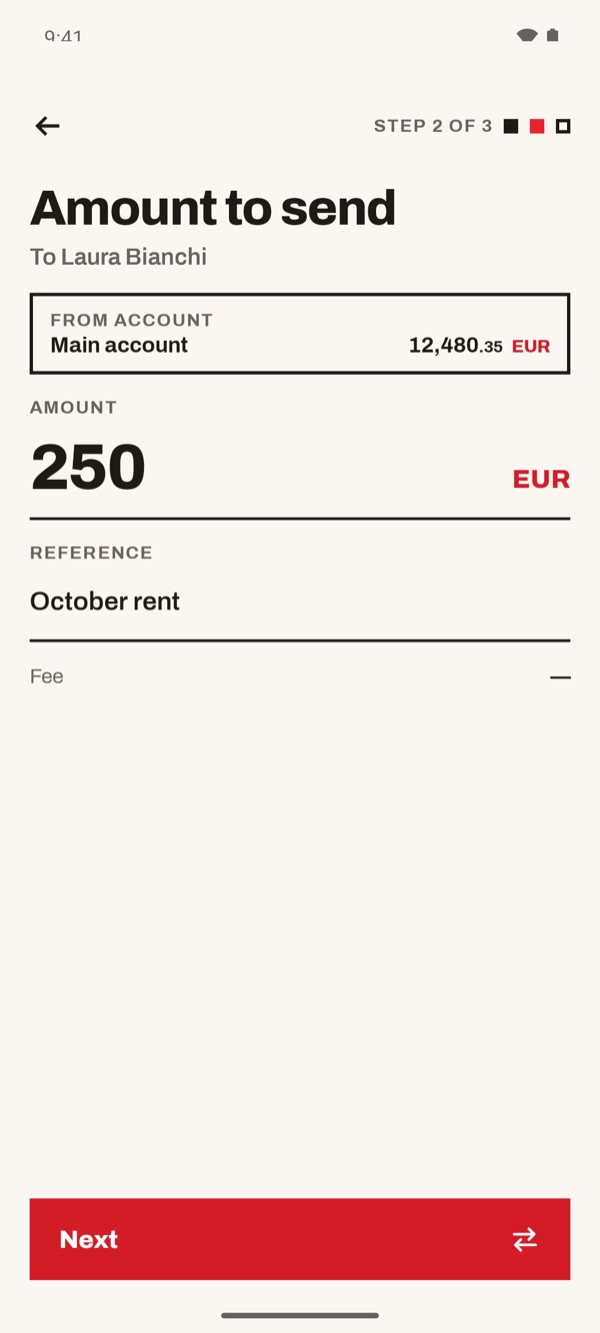
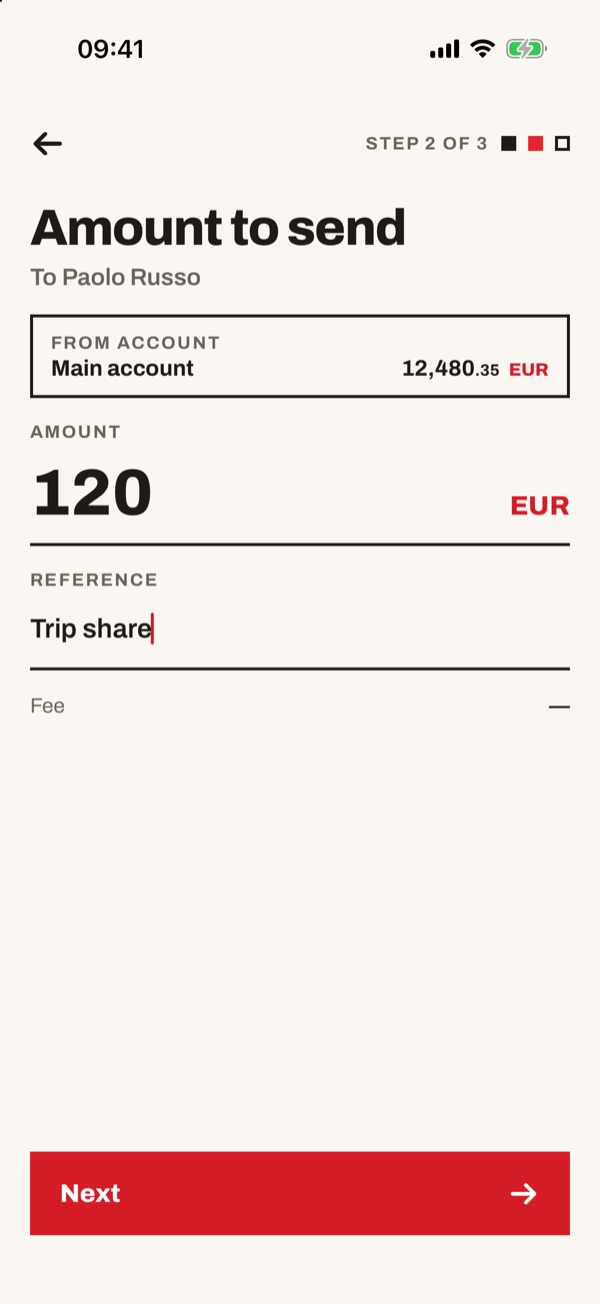
Check the account you pay from under “From account”. Type the amount in euros and the reference text, then tap “Next”.
- 44
SEPA transfer: check and send
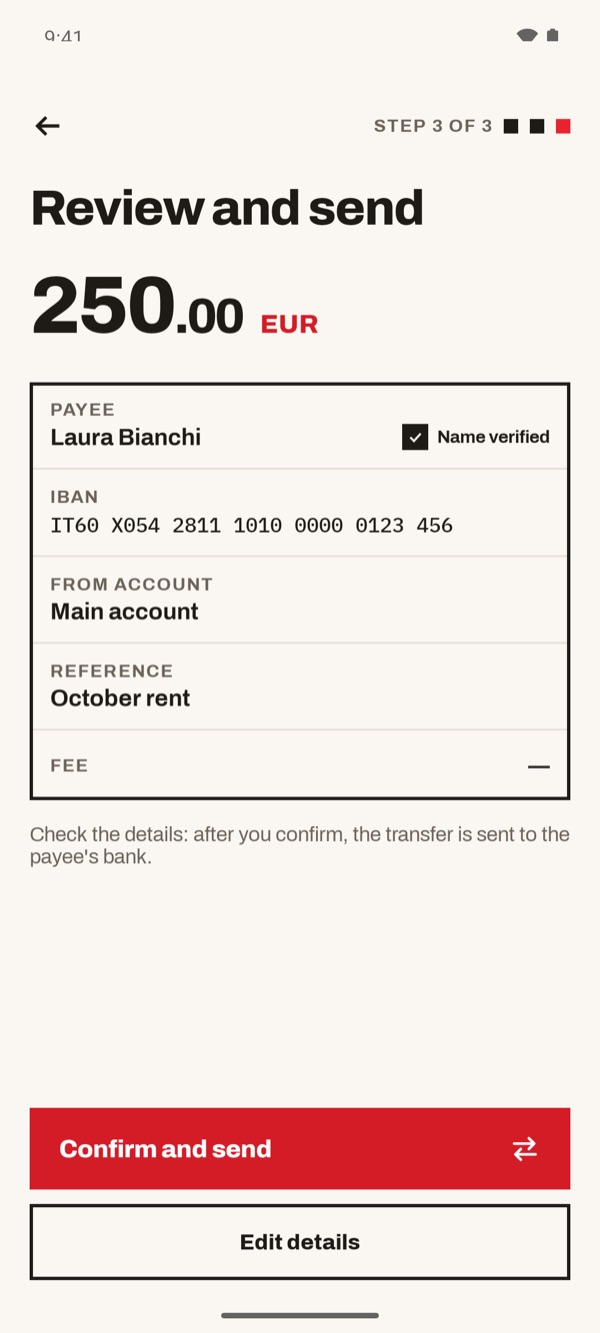
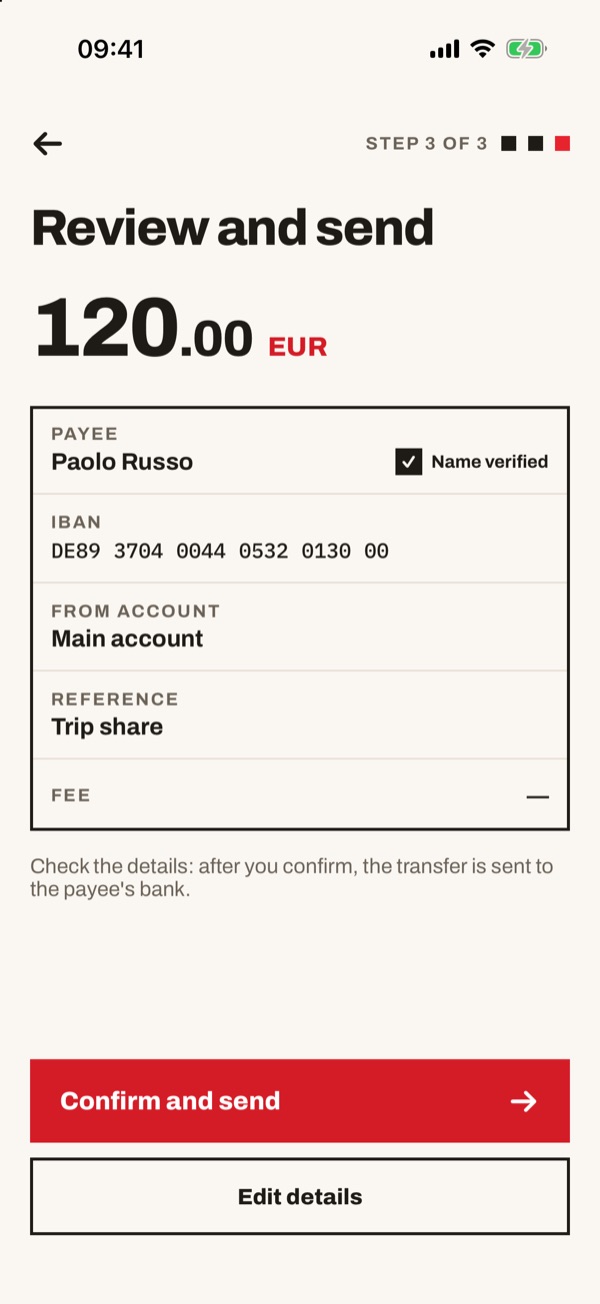
Read through amount, payee, IBAN, account and reference text. If something is wrong, tap “Edit details”. If everything is right, tap “Confirm and send”: the transfer leaves for the payee's bank.
- 55
SEPA transfer: confirm with the code
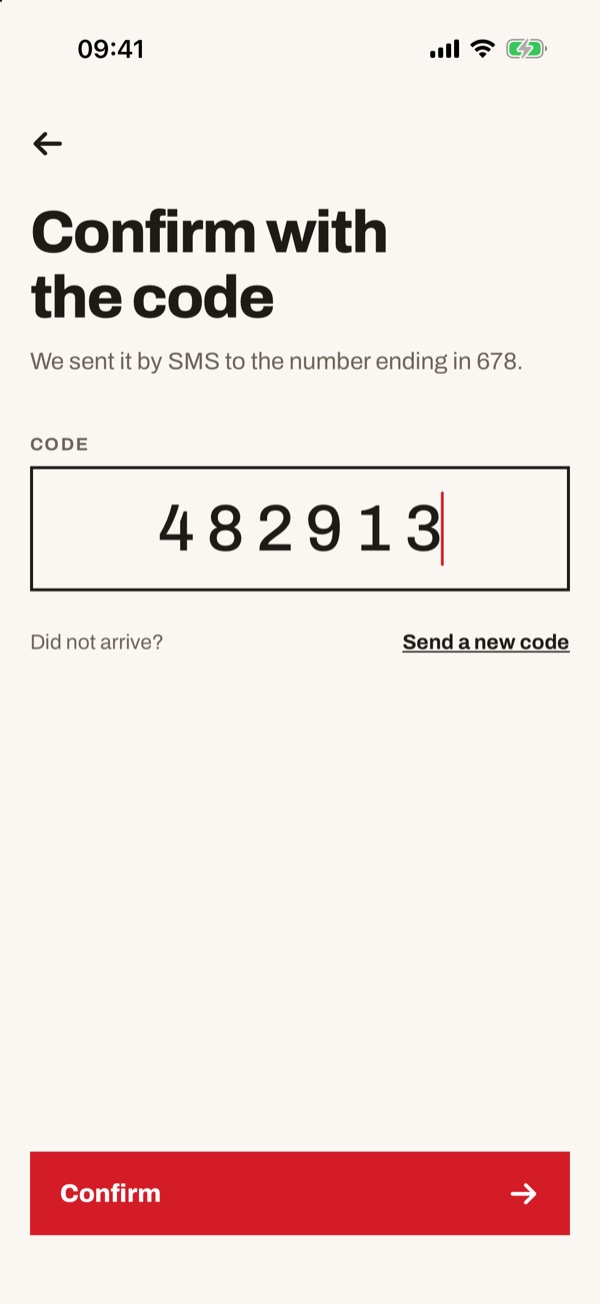
You get a code by SMS on your number. Type it in the “Code” field and tap “Confirm”. If it doesn't arrive, tap “Send a new code”.
- 66
SEPA transfer: transfer sent
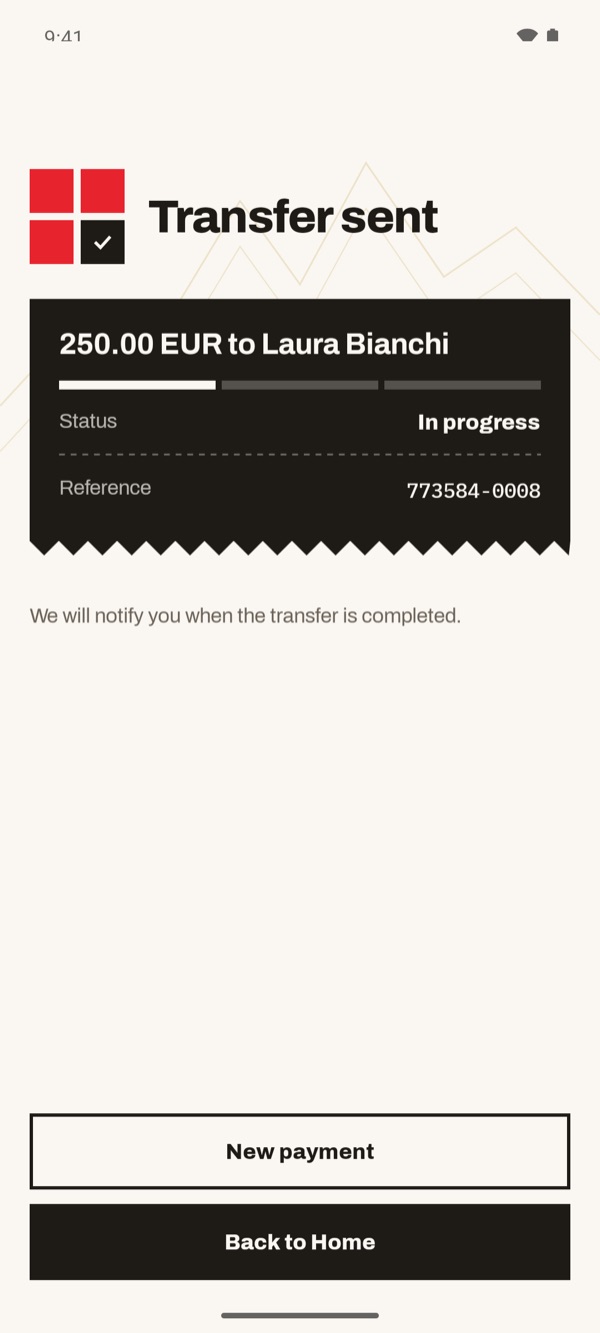
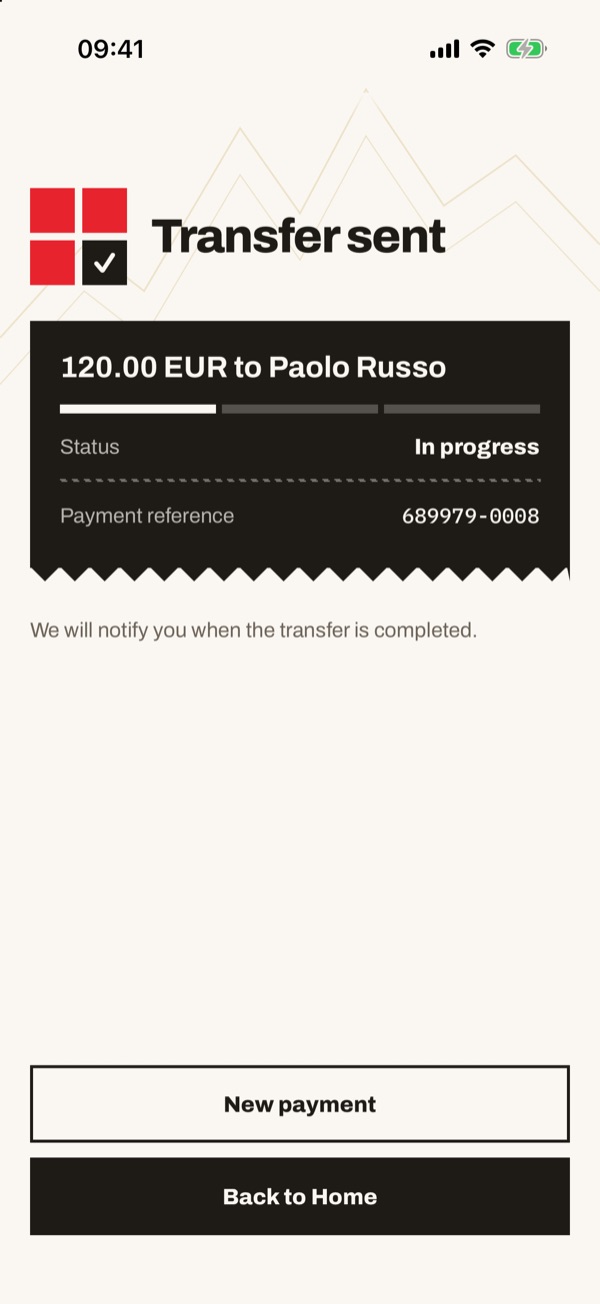
You see the “Transfer sent” receipt with amount, payee, status “In progress” and reference. We let you know with a notification when the transfer is completed. Tap “New payment” or “Back to Home”.
- 77
iSwiss client: choose the recipient
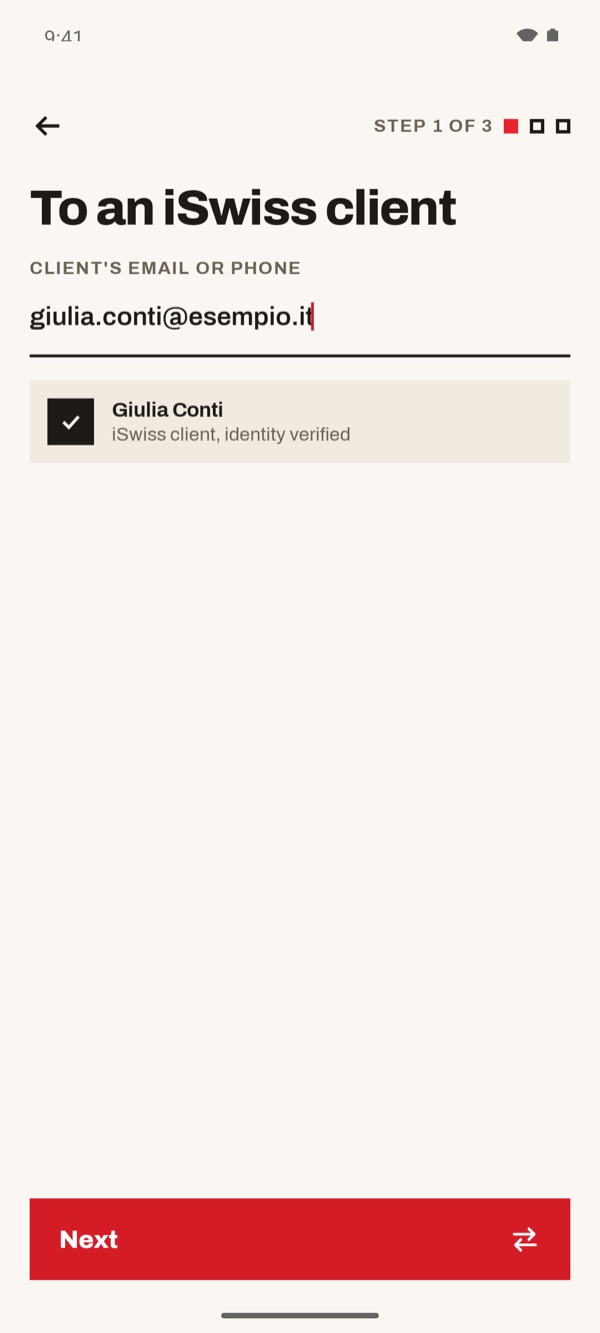
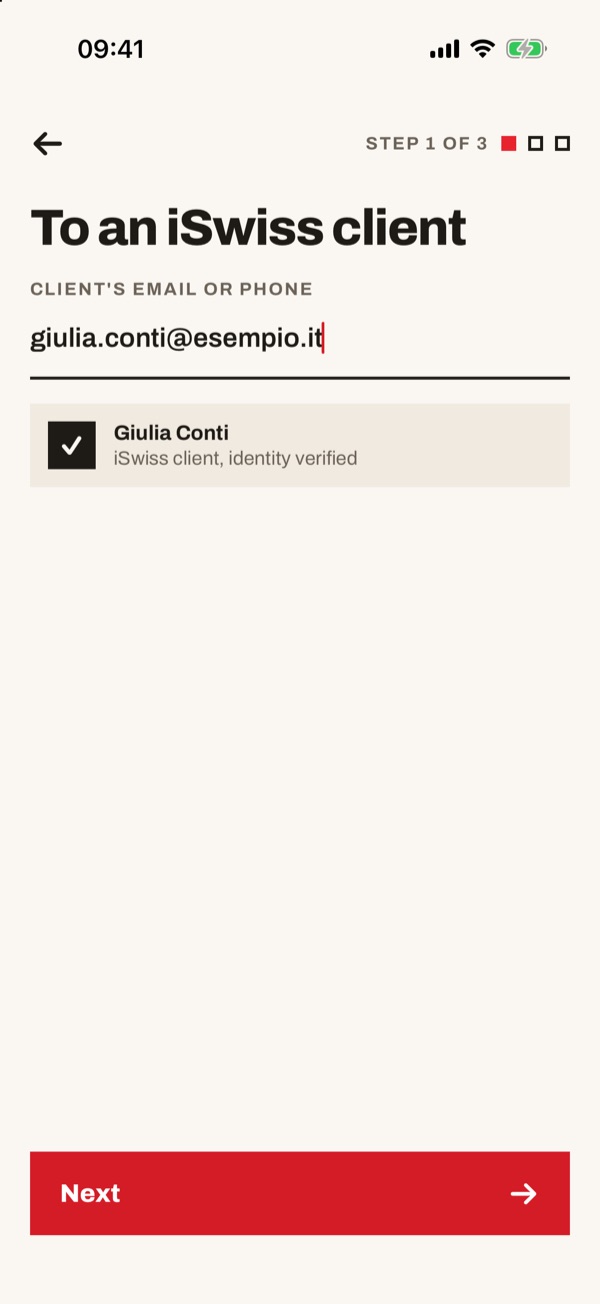
On the payments screen tap “To an iSwiss client”. Type the client's email or phone: if they are an iSwiss client, their name appears with “iSwiss client, identity verified”. Tap “Next”.
- 88
iSwiss client: amount and message
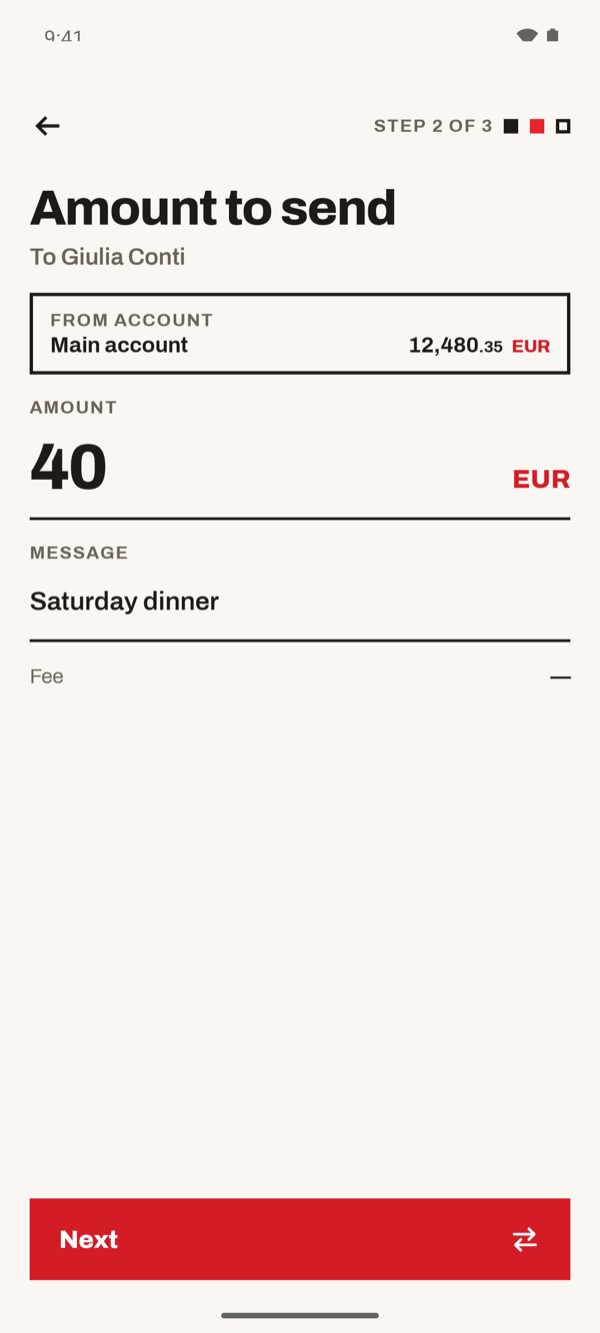
Check the account under “From account”, type the amount and, if you like, a message. Then tap “Next”.
- 99
iSwiss client: check and send
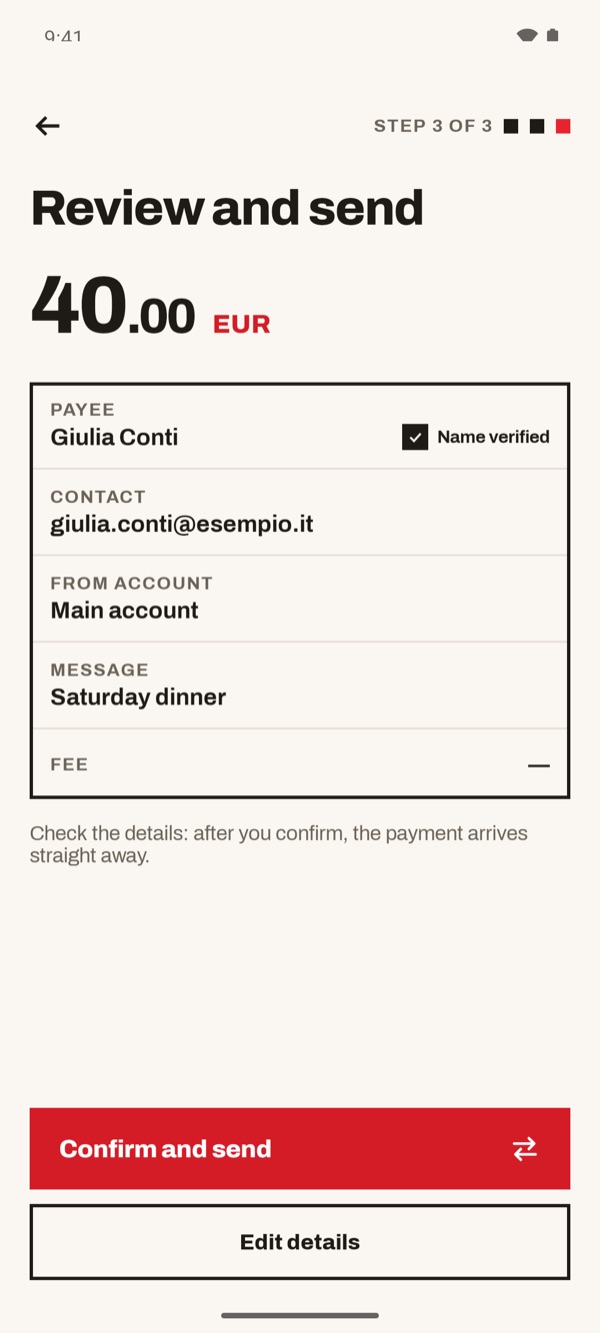
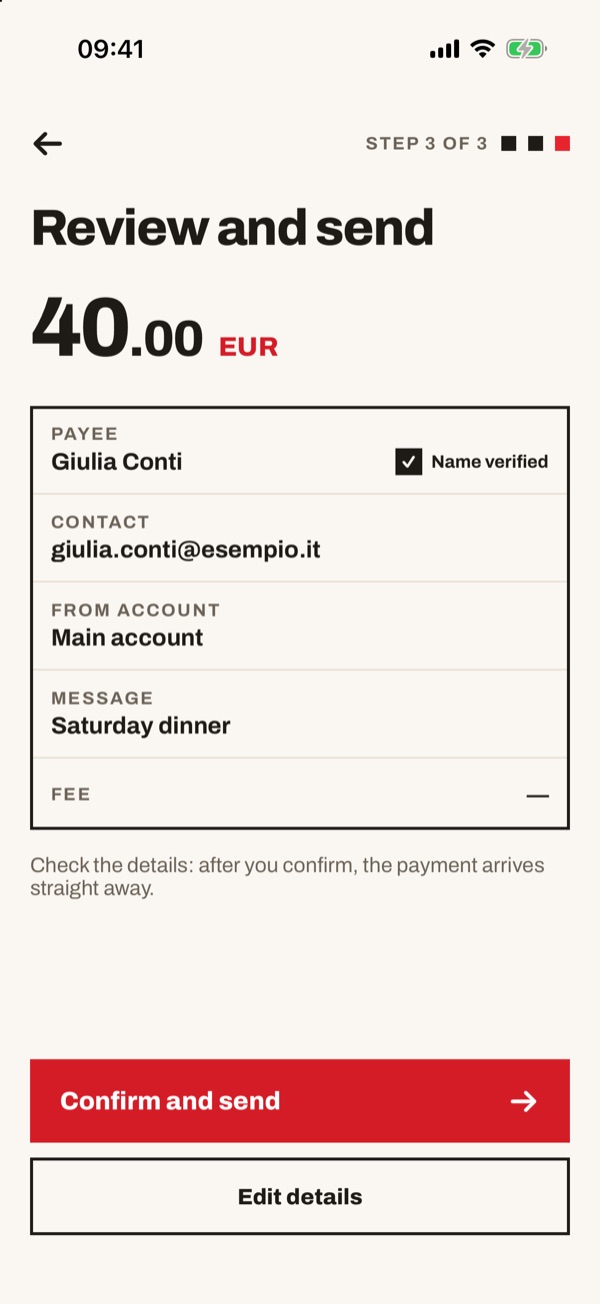
Read through amount, payee, contact detail, account and message. Tap “Confirm and send”, or “Edit details” to correct them. After you confirm, the payment arrives straight away.
- 1010
iSwiss client: payment sent
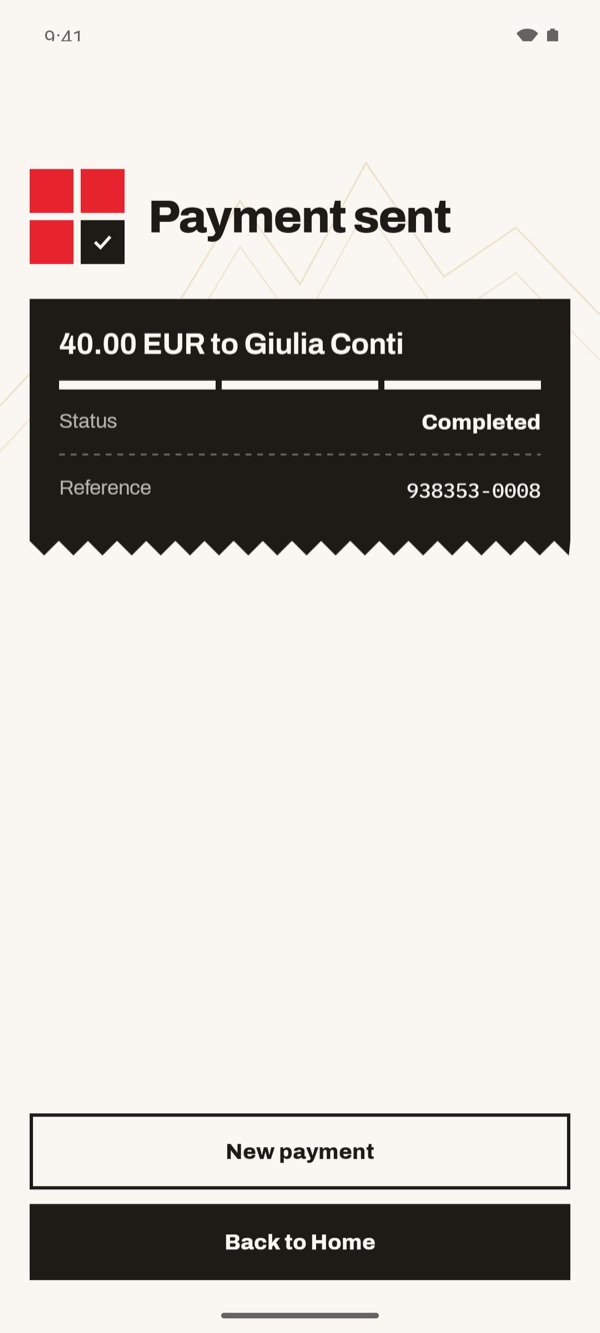
You see the “Payment sent” receipt with status “Completed” and reference. Tap “New payment” or “Back to Home”.
- 1111
Between my accounts: move the money
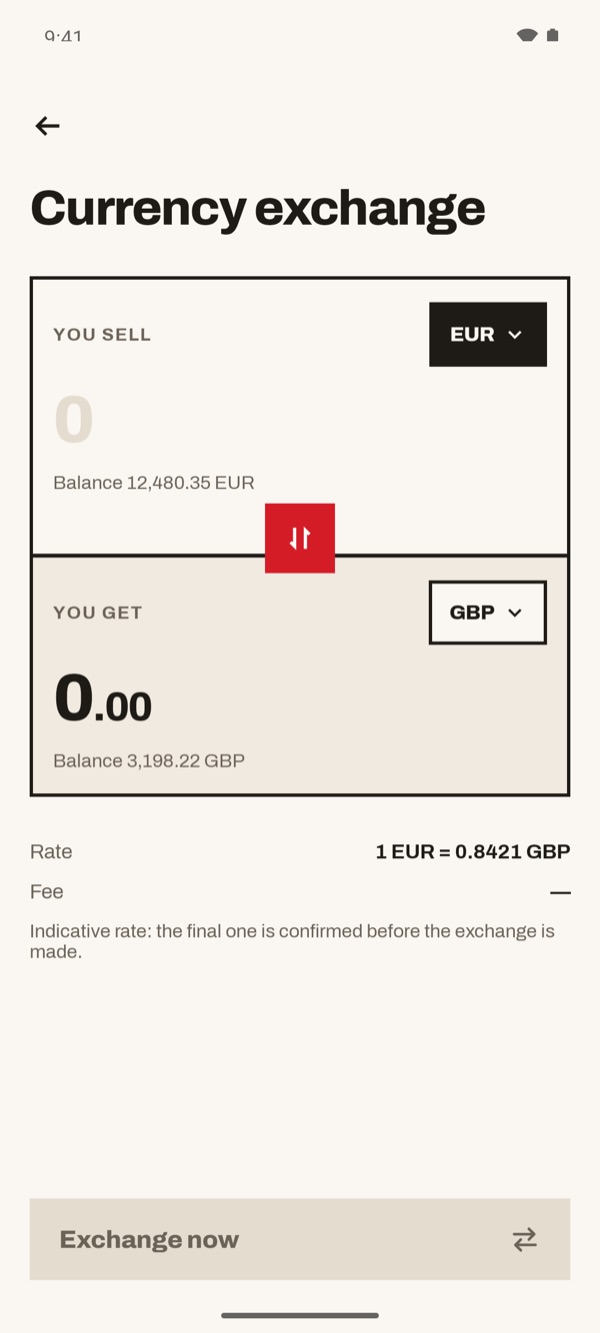
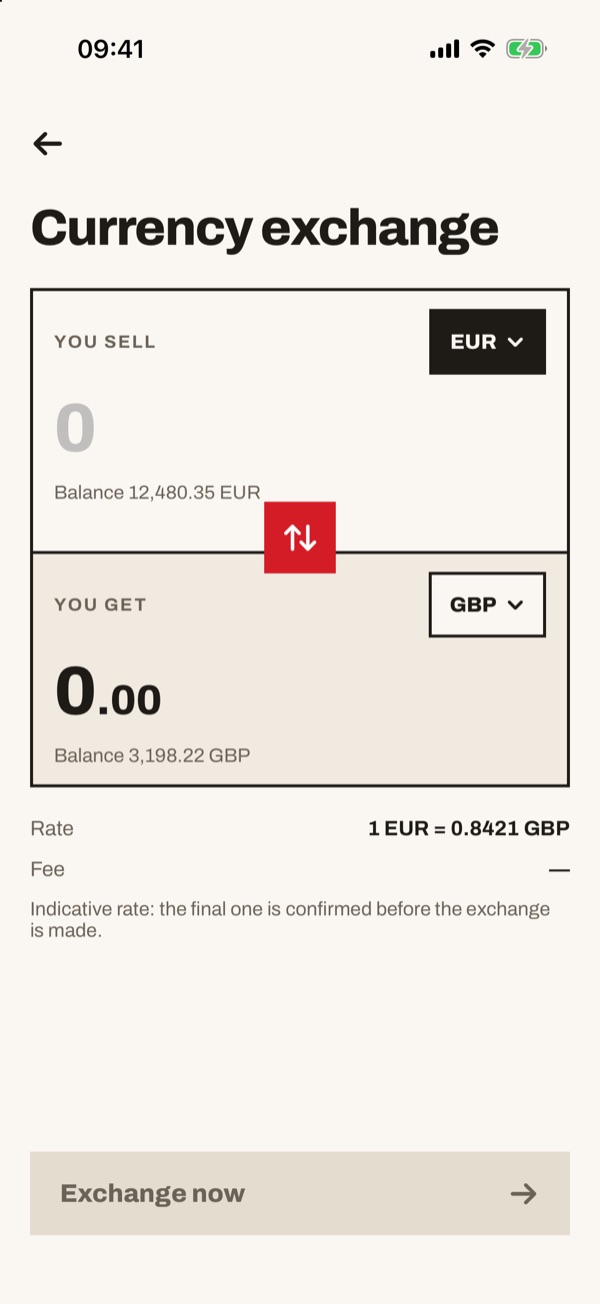
On the payments screen tap “Between my accounts”. The “Currency exchange” screen opens: in “You sell” choose the account you take the money from and type the amount, in “You get” choose the account it goes to. The red button in the middle swaps the two accounts. Check the rate and tap “Exchange now”.