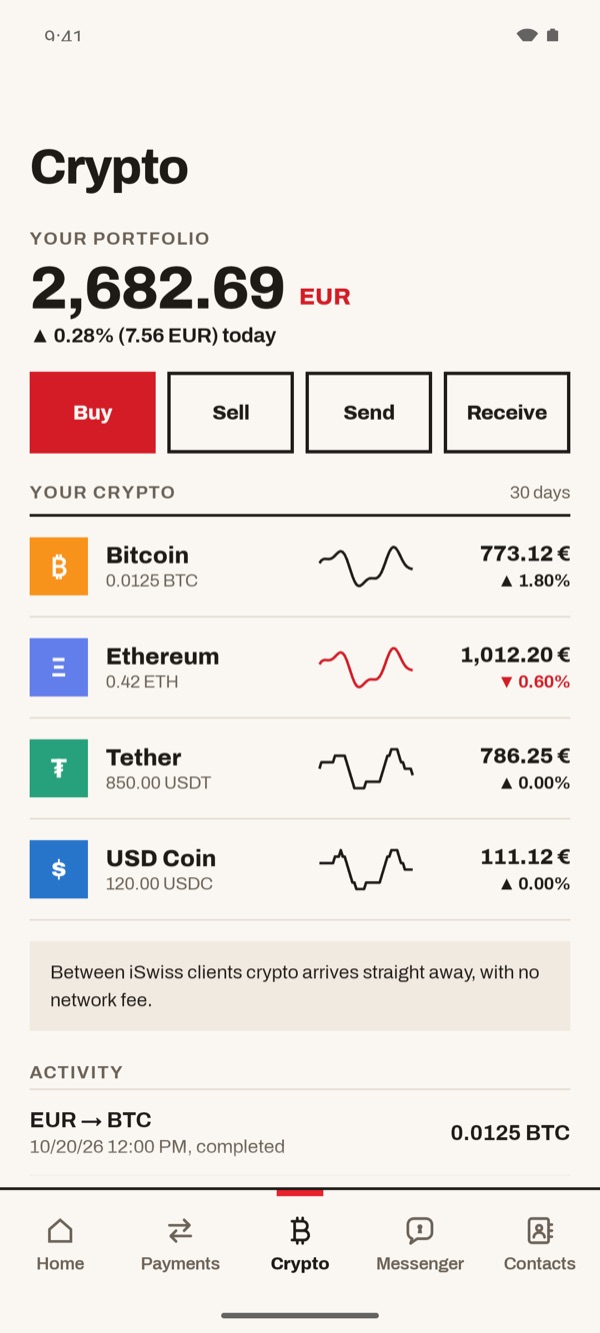
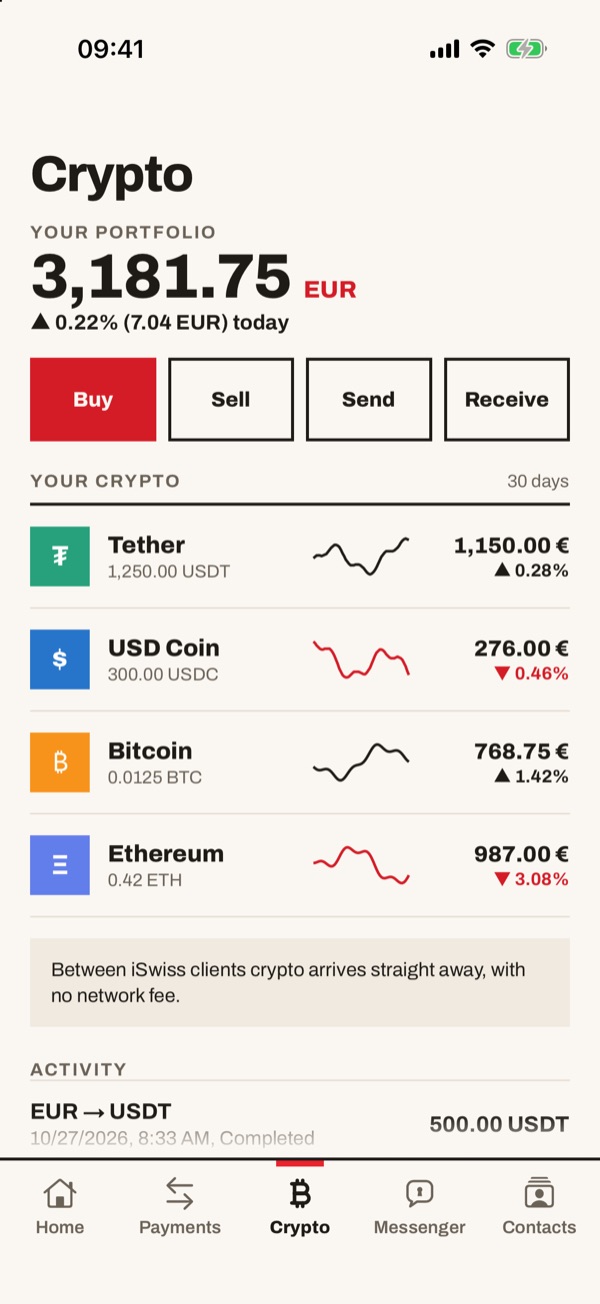
In the “Crypto” section you have your wallet: you see what your crypto is worth in euros and how it has done. From here you can receive crypto, buy and sell it with your euros and send it to others. Between iSwiss clients crypto arrives straight away and with no network fee.
- 11
Open your wallet
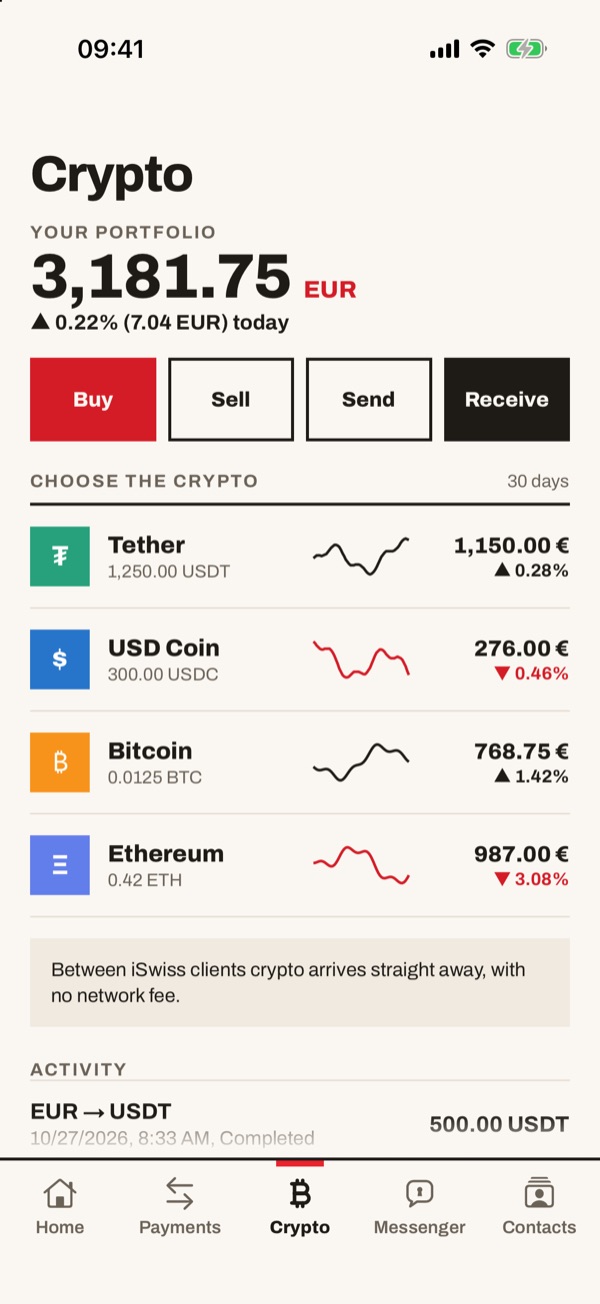
Tap “Crypto” in the bar at the bottom. At the top you see the total value of the wallet in euros and today's change. Below are the “Buy”, “Sell”, “Send” and “Receive” buttons, the list of your crypto with the trend over the last 30 days and, at the bottom, your “Activity”.
- 22
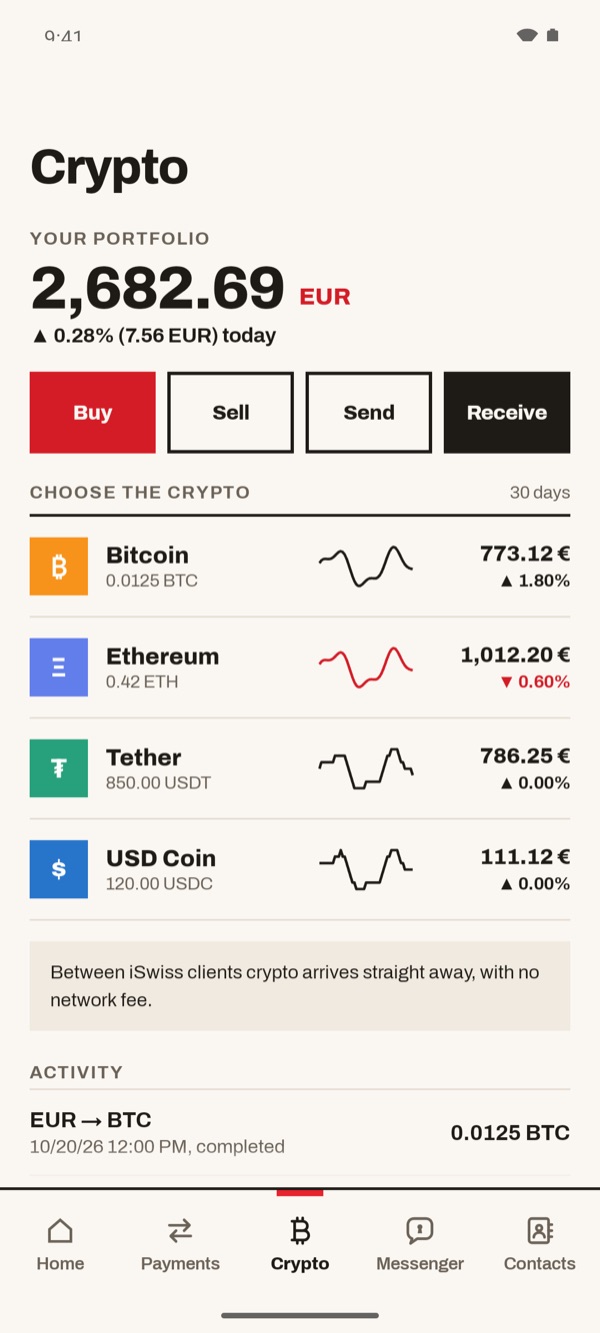
Tap “Receive” and choose the crypto
Tap “Receive”: the title of the list becomes “Choose the crypto”. Tap the crypto you want to receive.
- 33
The crypto page
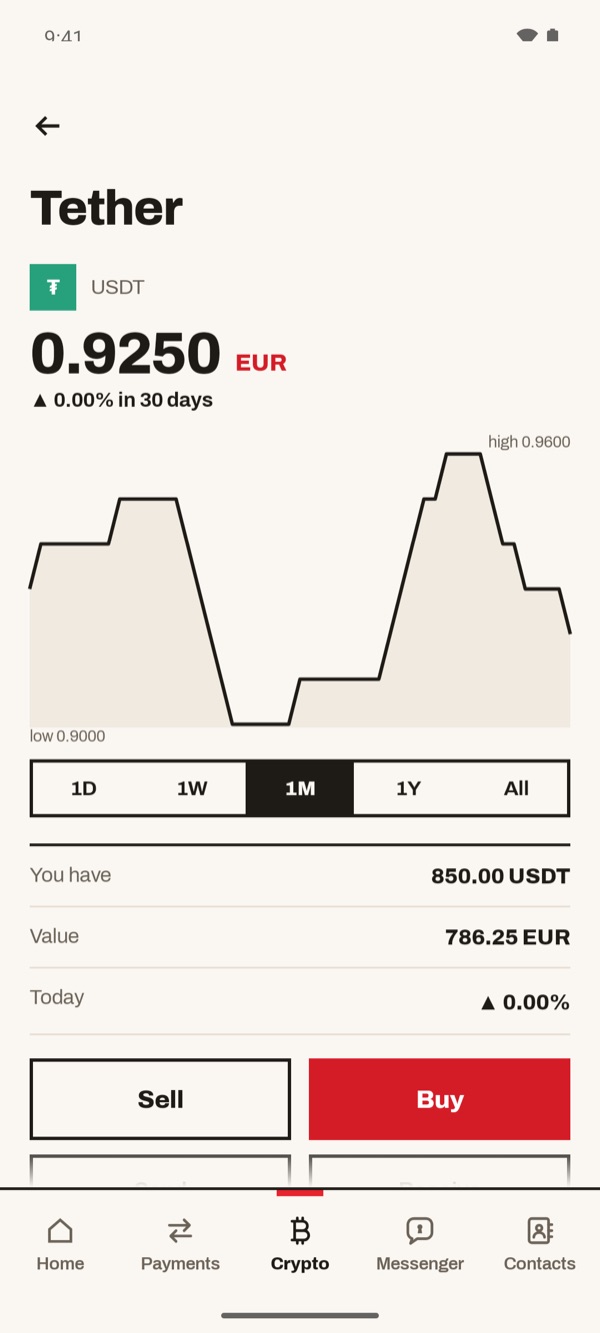
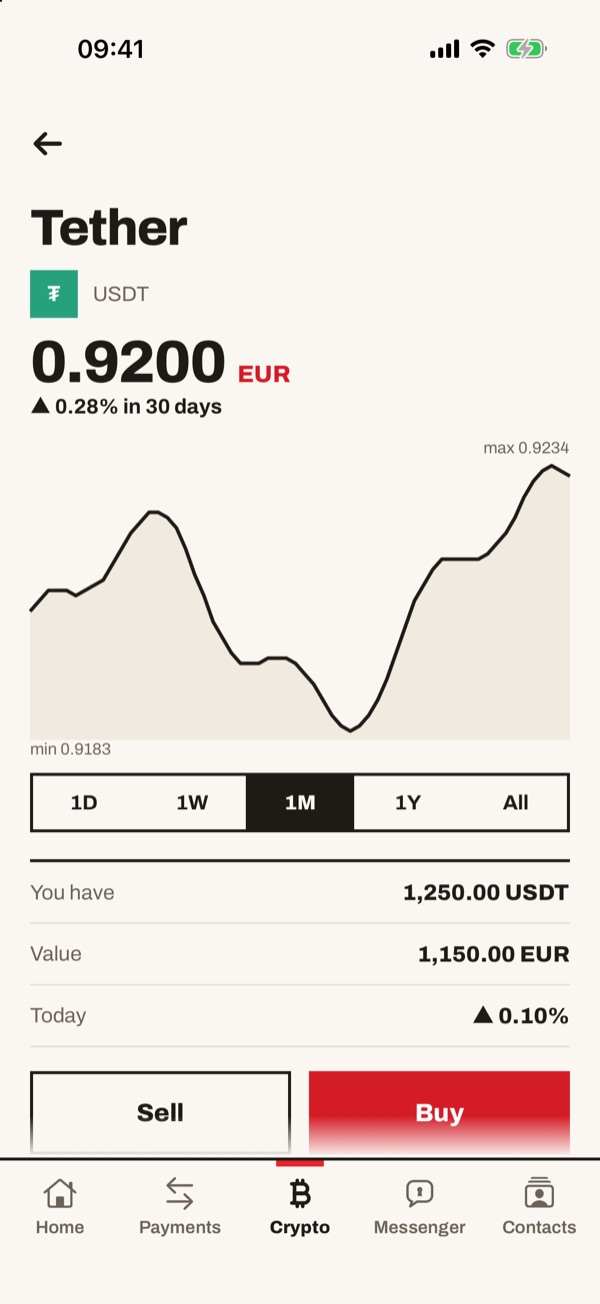
The crypto page opens: current price in euros, chart (you can choose “1D”, “1W”, “1M”, “1Y” or “All”), how much you have, its value and today's change. Below you find the “Sell”, “Buy”, “Send” and “Receive” buttons.
- 44
Choose the network and share the address
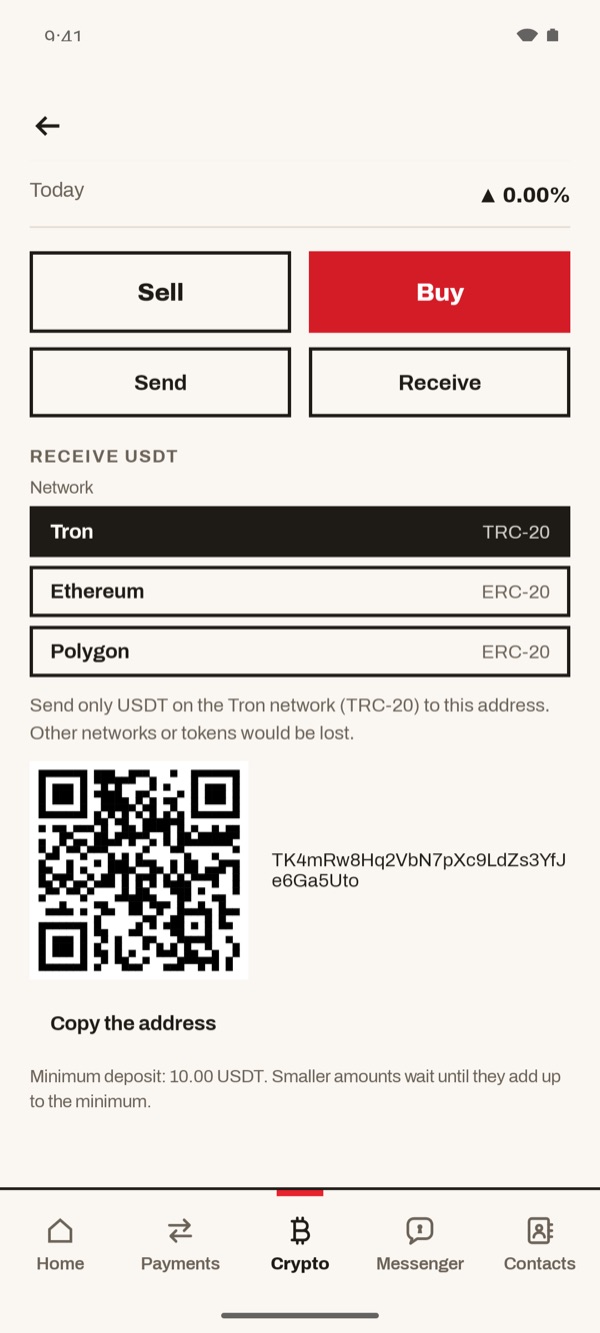
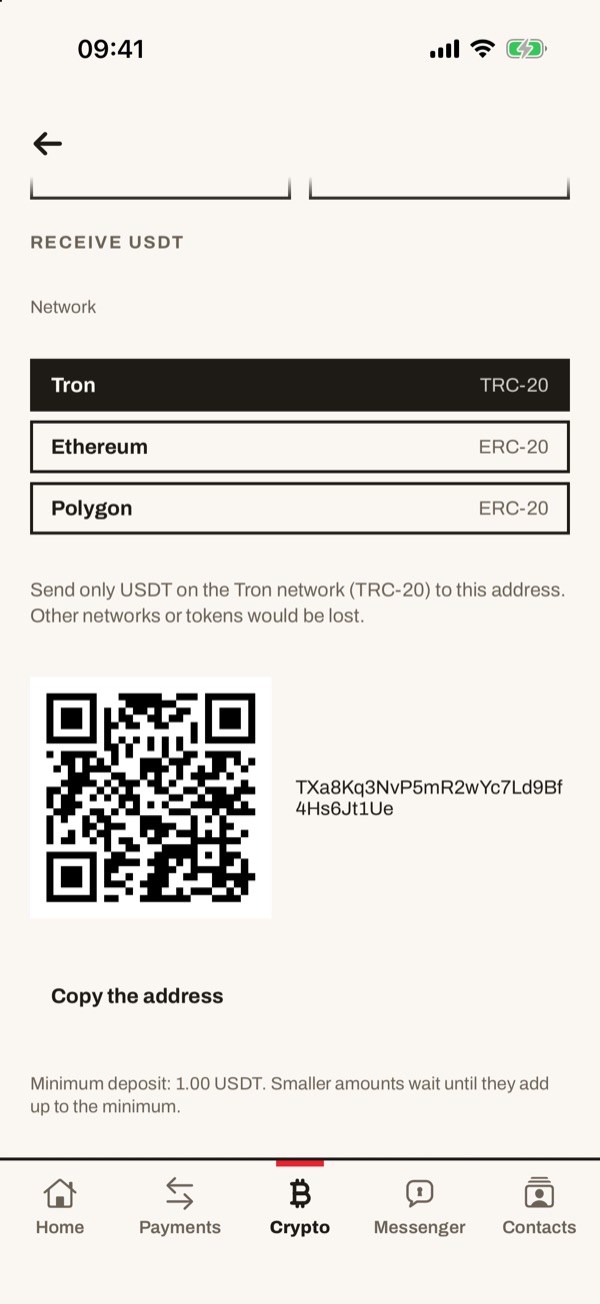
Under “Network” tap the network the crypto is sent from (for USDT: Tron, Ethereum or Polygon). The app shows the address for that network, with its QR code. Tap “Copy the address” and send it to whoever is paying you, or let them scan the QR. Below the address you find the minimum deposit.
- 55
Enter the amount and look at the price
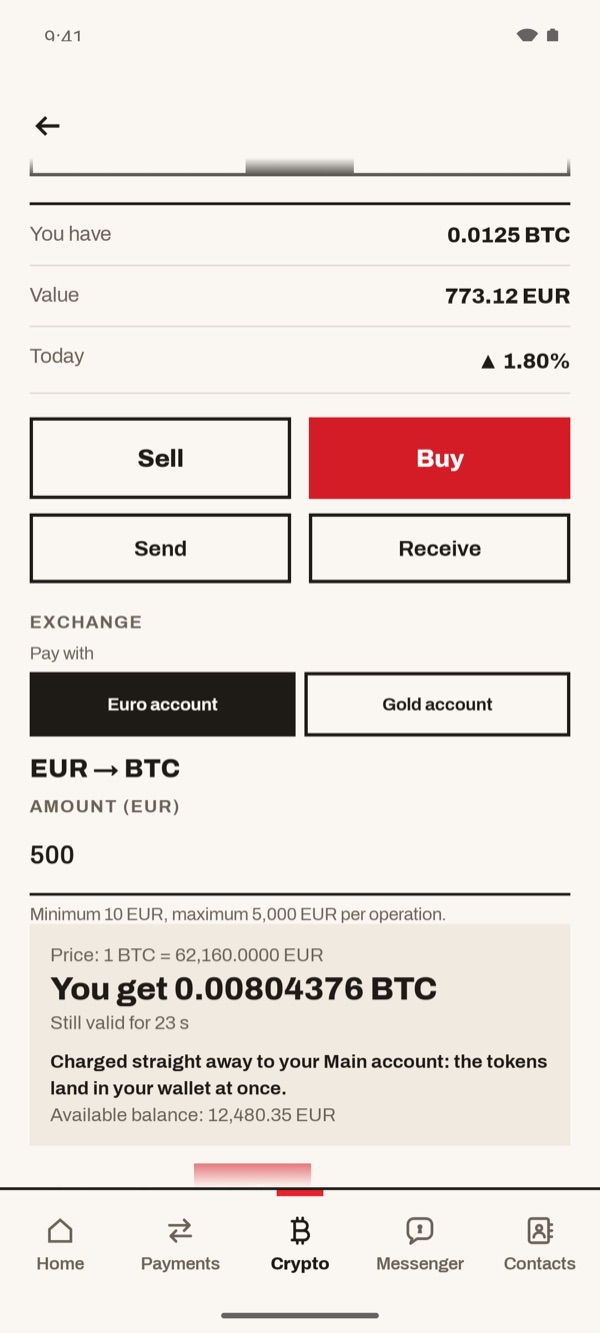
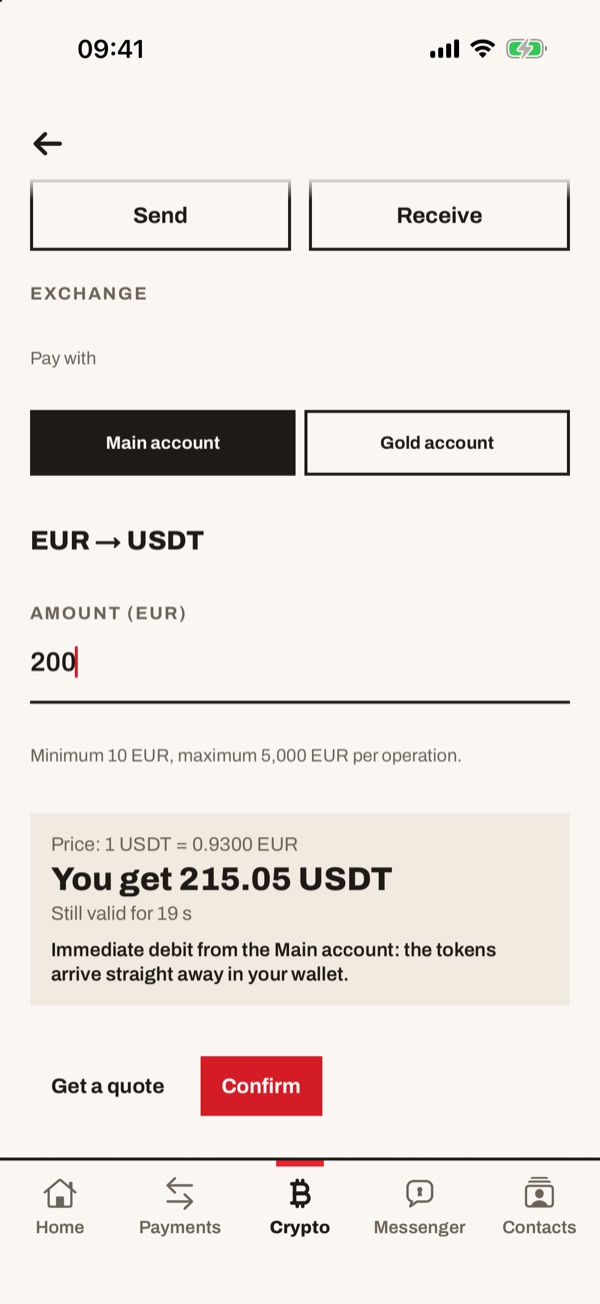
On the crypto page tap “Buy”. Under “Pay with” choose “Euro account” or “Gold account”, then enter the amount in euros. You see the price, how much you get and for how many seconds the price is still valid. If it suits you, tap “Confirm”.
On the crypto page tap “Buy”. Under “Pay with” choose “Main account” or “Gold account”, then enter the amount in euros. You see the price, how much you get and for how many seconds the price is still valid. If it suits you, tap “Confirm”.
- 66
Purchase completed
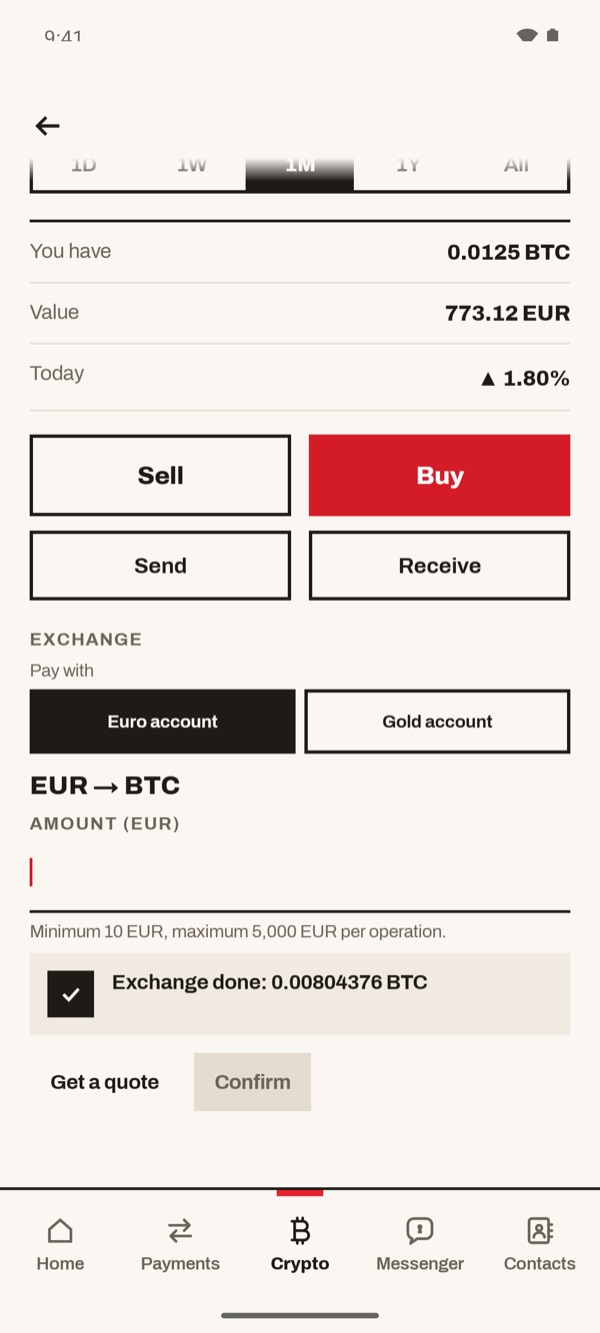
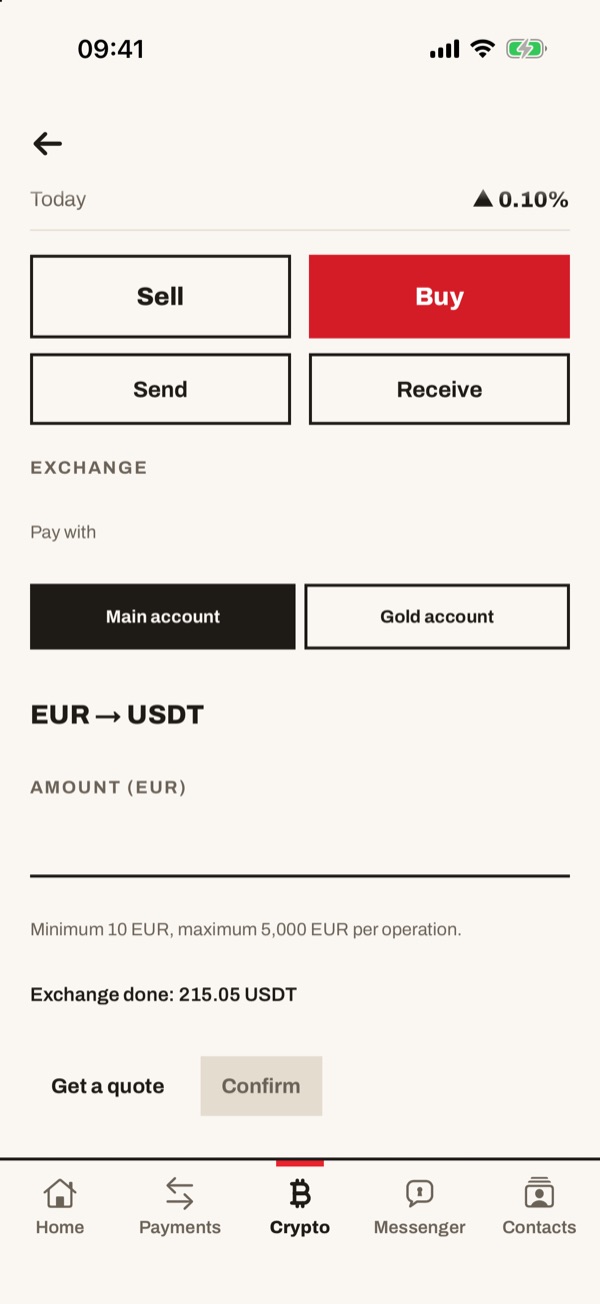
“Exchange done” appears with the amount of crypto you received. The crypto is already in your wallet.
- 77
Enter how much to sell and confirm
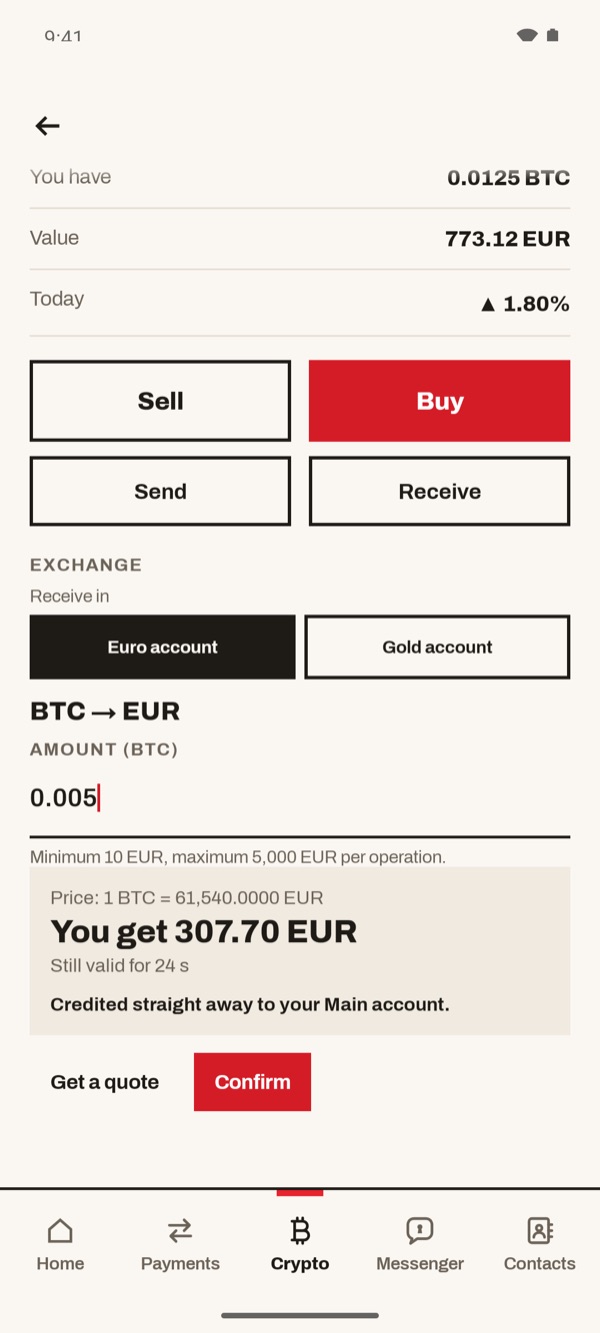
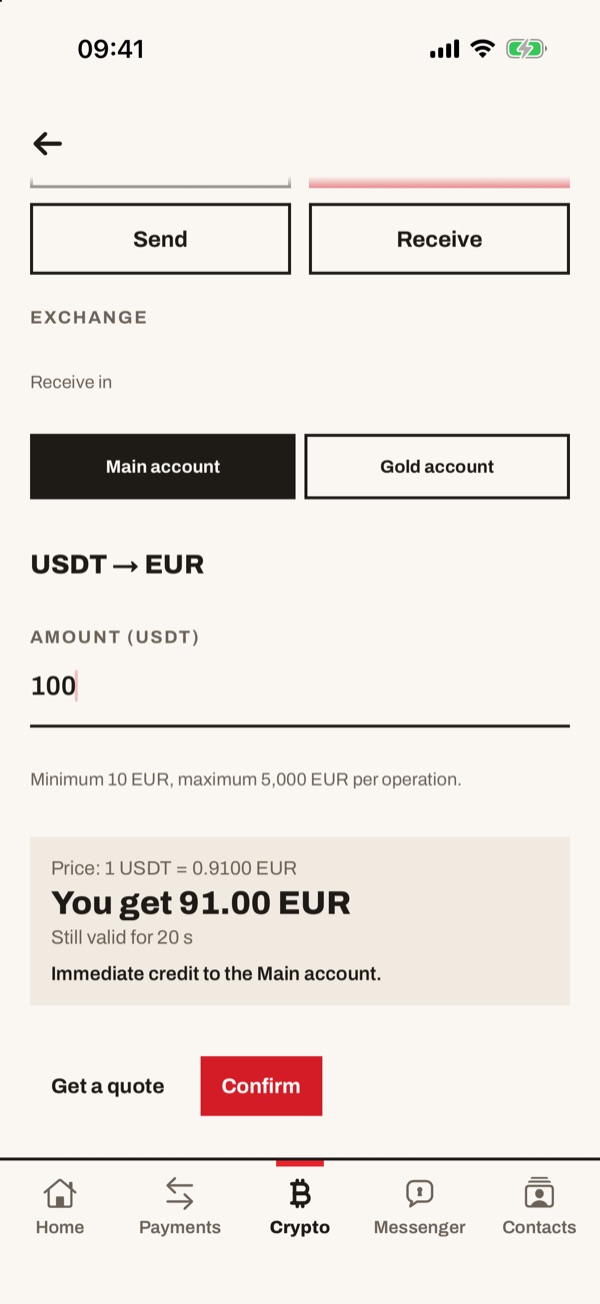
On the crypto page tap “Sell”. Under “Receive in” choose “Euro account” or “Gold account” and enter how much crypto you want to sell. You see the price, how many euros you get and for how many seconds the price is valid. Tap “Confirm”.
On the crypto page tap “Sell”. Under “Receive in” choose “Main account” or “Gold account” and enter how much crypto you want to sell. You see the price, how many euros you get and for how many seconds the price is valid. Tap “Confirm”.
- 88
Sale completed
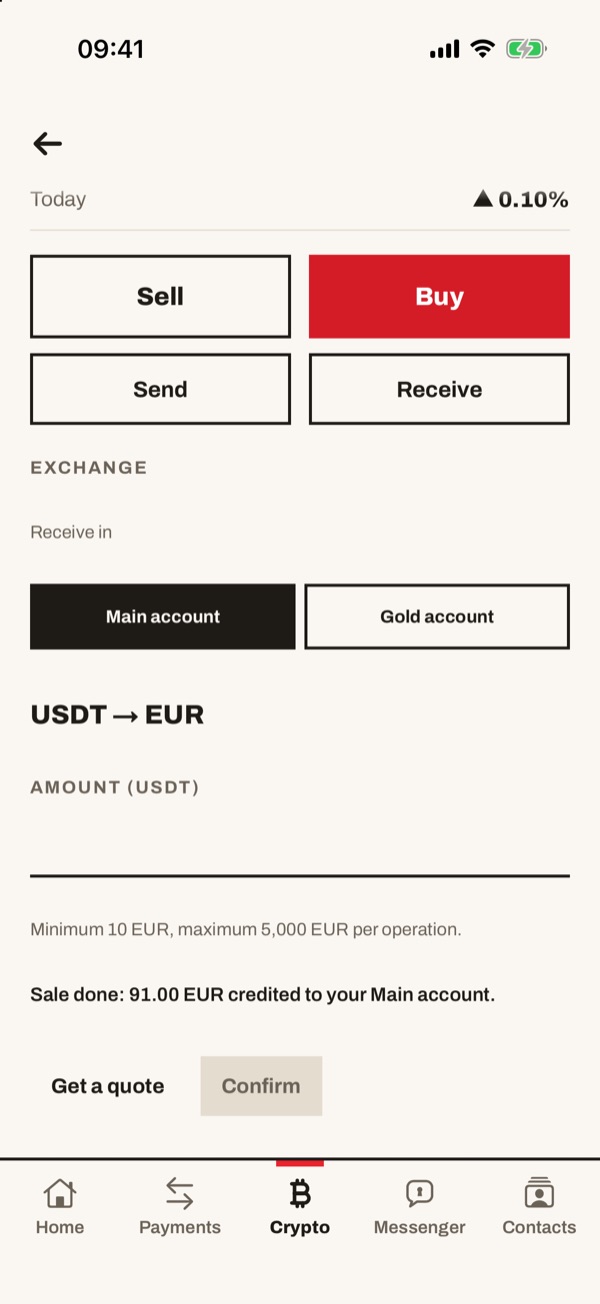
“Sale done” appears with the euros credited to the Main account.
- 99
Enter the recipient and the amount
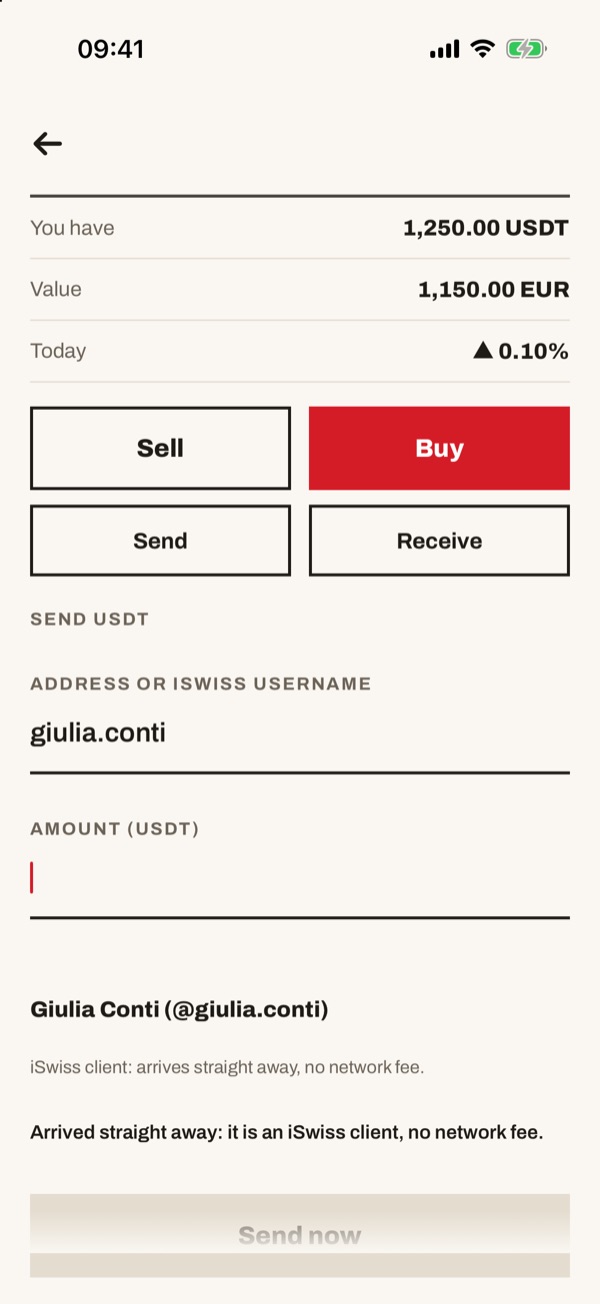
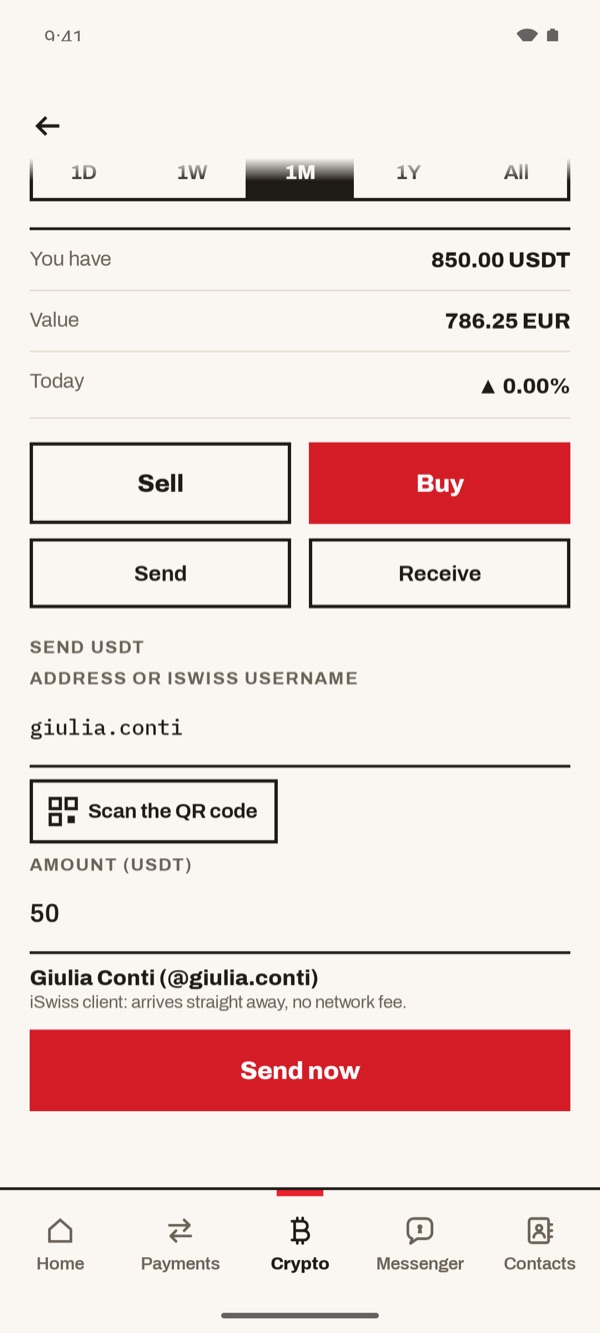
On the crypto page tap “Send”. In the “Address or iSwiss username” field type the address or the username of the recipient, or tap “Scan the QR code”. Enter the amount. If they are an iSwiss client, their name appears below with the words “iSwiss client: arrives straight away, no network fee.”. Tap “Send now”.
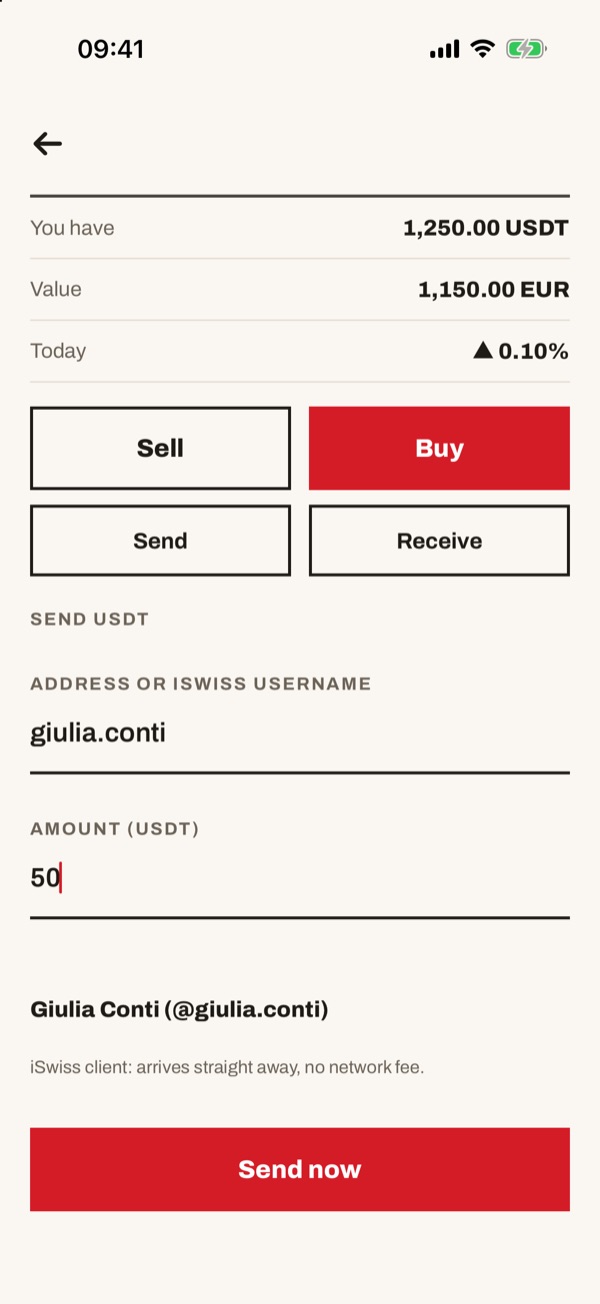
On the crypto page tap “Send”. In the “Address or iSwiss username” field type the address or the username of the recipient, then enter the amount. If they are an iSwiss client, their name appears below with the words “iSwiss client: arrives straight away, no network fee.”. Tap “Send now”.
- 1010
Transfer arrived
If the recipient is an iSwiss client, “Arrived straight away: it is an iSwiss client, no network fee.” appears.